

Ask the AI assistant
The AI assistant is an AI email deliverability assistant inside the portal: you ask about your reputation in plain words, and it answers from your team’s own monitoring data. The AI reputation summary and the AI remediation playbook on other pages work from the same data. All three are read-only and advisory: they can’t start scans, change settings or edit anything, and every step they suggest is one you decide on and carry out yourself.
Before you begin
Section titled “Before you begin”- The Business or Enterprise plan. On another plan, the page shows The assistant comes with the Business and Enterprise plans, and the Owner gets See plans.
- The Developer role or higher to ask questions and generate summaries and playbooks. Other roles can open the page but not ask.
- Credits on the team’s balance: 2 per answer, 5 per summary and 10 per playbook (see Credits and limits).
- Some monitoring data. The assistant only knows what HostRepute has measured for your team, so scan your domains and IPs and connect your inbox providers first.
Ask a question
Section titled “Ask a question”-
Open Respond, then AI assistant. The page always opens a new chat.
-
Choose one of the suggested questions, such as Am I on any blocklists right now? or What should I fix first?, or type your own in the box marked Ask about your reputation…. A question can be up to 4,000 characters.
-
Press Enter or choose Send question. Press Shift Enter for a new line. The answer appears as it’s written.
-
Ask follow-up questions in the same chat: the assistant keeps the earlier questions and answers as context.
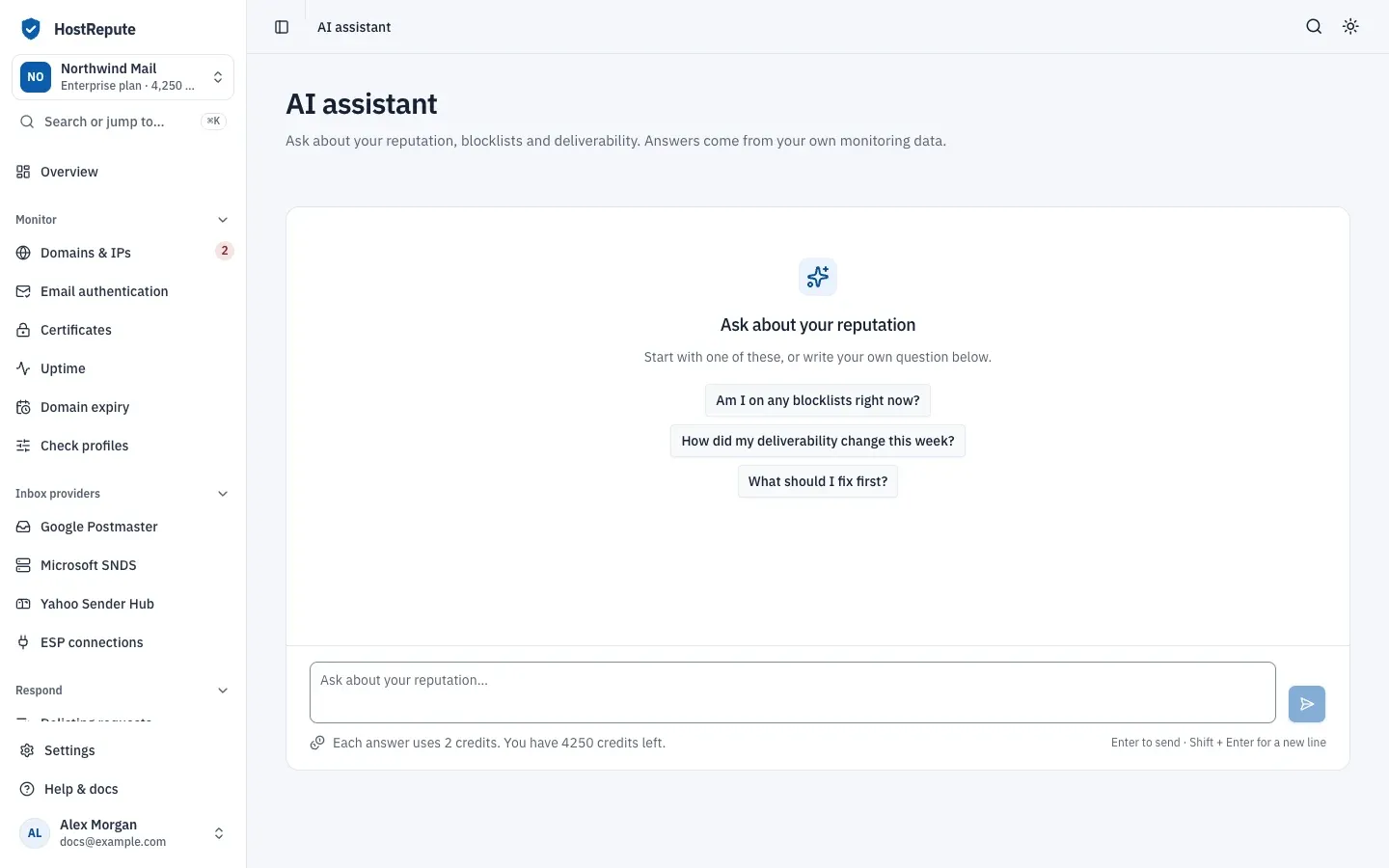
A chat belongs to the member who started it; other members of the team don’t see it. When you leave or reload the page, the chat ends, and earlier chats aren’t shown again.
What the assistant reads
Section titled “What the assistant reads”To answer, the assistant looks up your team’s data through six read-only sources:
- Reputation score: the team’s reputation score, its tier and coverage, and the lowest-scoring domains and IPs.
- Blocklists: the latest completed scan of each domain or IP and the blocklists that list it.
- Email authentication: your recent email authentication checks.
- Microsoft SNDS: the connection’s status, recent data and the status of your IPs.
- Google Postmaster Tools: the connection’s status and recent domain reputation data.
- Delisting requests: your requests, their status and check-back dates.
It doesn’t read certificates, uptime, domain expiry, campaign preflights, ESP connections or Yahoo Sender Hub. It is instructed to answer only from what these sources return, to say so when they have nothing on a question instead of guessing, and to treat text inside your data, such as a blocklist’s answer, as data rather than instructions. Like any AI answer, it can still be wrong: check what matters on the page of the domain, IP or blocklist it refers to.
Summaries and playbooks
Section titled “Summaries and playbooks”Two cards on other pages use the same data:
- AI reputation summary on the Overview, for the whole team, and on the page of a domain or IP, for that one. Choose Generate AI summary to get an overall status, a headline and the key findings, each with a severity.
- AI remediation playbook on the page of a domain or IP, on an email authentication check result, and on Delisting requests, for the domain or IP in the filter or the whole team. Choose AI remediation playbook to get remediation steps ranked high, medium or low, each with its reason. When a step links to a page, Open guide opens it. Links are limited to known blocklist operators, lookup sites and HostRepute itself; any other link is removed.
Both are written in the background, and the card shows its progress until the result is ready. Each one is new: choose Regenerate for a fresh one. On a plan without the assistant, the cards show Unlock the AI reputation assistant with Upgrade plan.
Credits and limits
Section titled “Credits and limits”| Action | Credits |
|---|---|
| Blocklist scan you start (Manual scan, the API or MCP) | 1 |
| Certificate check you start (portal, API or MCP) | 1 |
| One-off email authentication check | 1 |
| Campaign preflight | 1 |
| AI assistant chat message | 2 |
| AI summary | 5 |
| AI playbook | 10 |
- An answer is charged when it finishes. One that stops halfway costs nothing.
- A summary or playbook is charged when it’s ready. One that fails costs nothing.
- The team can make 20 AI requests per minute. Chat answers, summaries, playbooks and the cards checking for their results all count toward it.
Check that it worked
Section titled “Check that it worked”- The answer appears under your question, and the line under the box shows the team’s balance 2 credits lower.
- References to your domains, IPs and blocklists match what you see on their pages.
Troubleshooting
Section titled “Troubleshooting”- The assistant comes with the Business and Enterprise plans. The team isn’t on the Business or Enterprise plan. The Owner can change the plan.
- “Your role can read this page but can’t ask questions.” Ask a member with the Developer role or higher.
- Not enough credits. The balance is under 2 credits. The Owner can buy more with Get more credits.
- The assistant isn’t available right now. The assistant couldn’t answer, for example because the team made more than 20 AI requests in a minute. Try again in a moment; you weren’t charged.
- “The answer stopped before it finished, so you were not charged.” Ask the question again.
- Generation failed on a summary or playbook card. Choose Try again. A failed one isn’t charged.
- The answer says there’s no data. HostRepute hasn’t measured that yet: wait for the first scan, or connect Google Postmaster Tools or Microsoft SNDS.
- Your earlier chat is gone. Chats end when you leave the page. Ask again in a new chat.
Related
Section titled “Related”- The Overview page
- How the reputation score works
- Get a listing removed
- Credit costs
- Connect AI clients with MCP, to ask your own AI client about the same data