

Get a listing removed
A blacklist removal request, or delisting request, asks the blocklist that lists your domain or IP to remove it. HostRepute keeps one request per listing: it hands you the list’s own removal form, email address or instructions, walks you through the list’s checklist, and reminds you when to check back. HostRepute never submits a request for you. You send it to the list yourself, and only the list can remove the listing.
Before you begin
Section titled “Before you begin”- A listing. A request starts from a blocklist that lists one of your domains or IPs in a completed scan. A blocklist that didn’t answer during a scan hasn’t listed anything, so there is nothing to ask it to remove. Blocklist monitoring explains the results.
- The Developer role or higher to start and update requests. Viewers can read them but not change them.
- The cause fixed first. Find out why the list added you, for example a compromised account or a spam complaint, and fix it before you ask. The portal puts it this way: “Lists often reject requests while the cause is still there.” The delisting guide on hostrepute.com covers the common causes.
- A plan or the trial. A team without one sees Choose a plan to start monitoring again instead of this page.
Send a removal request
Section titled “Send a removal request”-
Start the request from the listing, in either of two places:
- On the scan that found the listing, every blocklist marked Listed in Blocklist results has a removal panel under What to do, with the list’s instructions when HostRepute has them. Choose Start a request. HostRepute opens the handoff straight away: Open their removal form opens the list’s form in a new tab, and Email the list opens your mail app with a drafted message that names the domain or IP and includes the list’s answer from the scan and its guidance. A list with neither shows its instructions only.
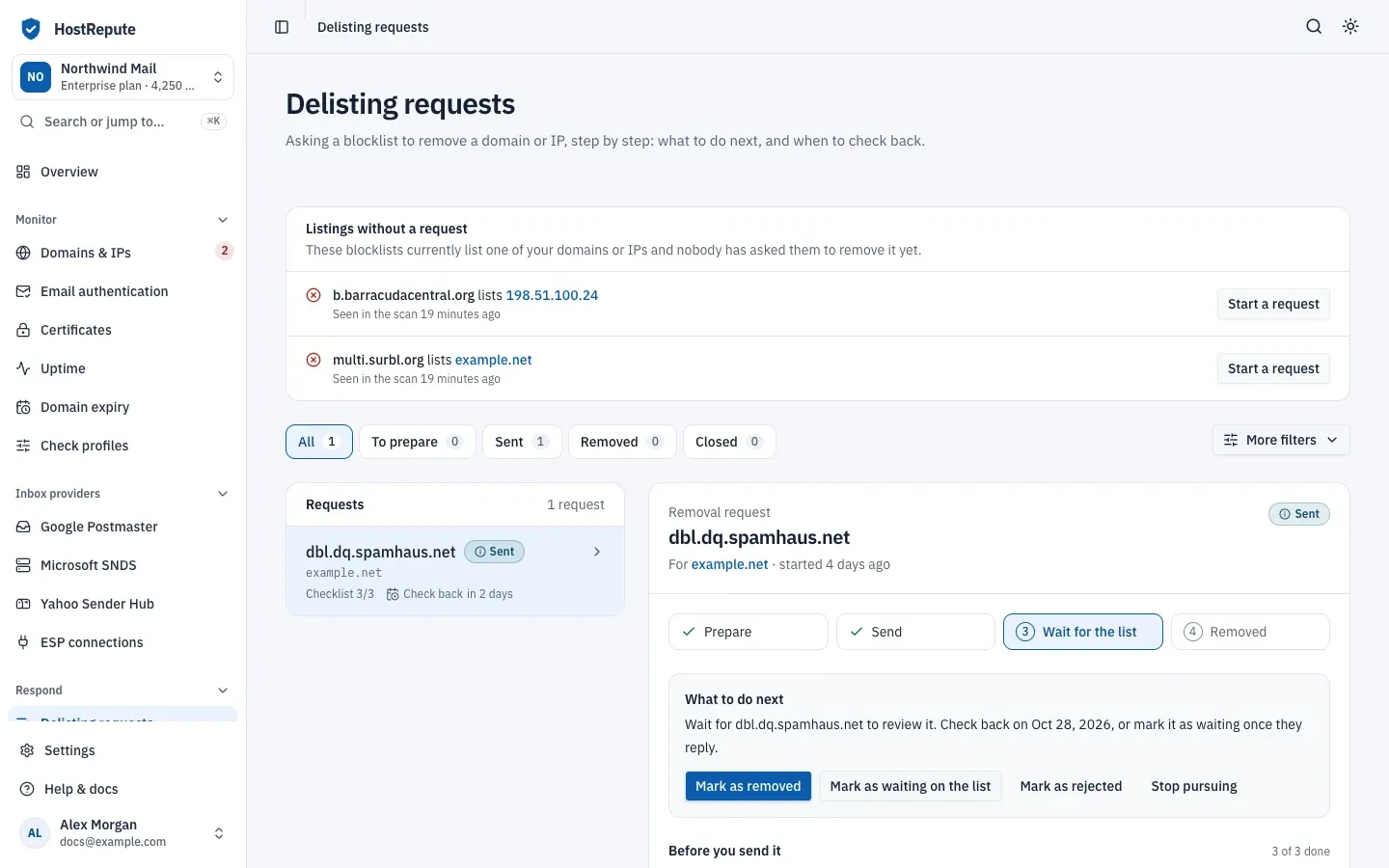
- On Respond, then Delisting requests, Listings without a request shows every blocklist that lists one of your domains or IPs in its latest completed scan and has no open request. Choose Start a request next to it. This creates the request without opening the list’s form yet.
A listing has one open request at a time. Starting again opens the request that’s already in progress, and the scan’s panel offers Open in Delisting requests.
-
On Delisting requests, choose the request under Requests. The panel shows four steps (Prepare, Send, Wait for the list and Removed) and, in What to do next, one or two sentences about what to do now.
-
Work through Before you send it, the checks this list asks for before a request. Each tick saves as you go. When every item is ticked, or the list has no checklist, choose Mark as ready to send.
-
In Send the request, read the list’s instructions, then use Open their removal form or Email the list. When HostRepute has a request template for the list, Copy the request text copies it and Show the request text shows it first. Send the request yourself, then choose Mark as sent.
-
Wait for the list. Marking the request as sent sets a check-back date one week later, unless you already set one. To change it, pick a day in Check back on under Check back and choose Save date. When the list replies, choose Mark as waiting on the list.
-
Close the request with the list’s answer: Mark as removed once the listing is gone, Mark as rejected if the list turned the request down, or Stop pursuing if you decide not to pursue it. A removed request still offers Mark as listed again in case the list adds you again.
Scans don’t change a request’s status for you: you mark it removed or rejected when the list answers. The one exception is a blocklist check started through the API or an MCP client, which marks a removed request as listed again when that list lists the same domain or IP again.
Request statuses
Section titled “Request statuses”| Status | Meaning |
|---|---|
| Preparing | You started a request from a listing and are working through the list's checklist. It can move to Ready to send once every checklist item is done. |
| Ready to send | The checklist is done. Send the request to the list (their removal form, an email, or their instructions), then mark it as sent. |
| Sent | You sent the request and are waiting for the list to review it. HostRepute reminds you on the follow-up date. |
| Waiting on the list | The list replied or is reviewing the request. Mark it as removed once the listing is gone; the next scan confirms it too. Follow-up reminders continue. |
| Removed | You marked the listing as removed. HostRepute alerts you if it's listed again. |
| Listed again | The list listed it again after it was removed: you marked it, or a later blocklist check through the API found the listing again. Find out why, then start a new request from the listing. |
| Rejected | The list turned the request down. Fix the cause they gave, then start a new request. |
| Not pursued | You chose not to pursue this listing; the request is closed. |
Show requests groups the statuses into stages: To prepare (Preparing and Ready to send), Sent (Sent and Waiting on the list), Removed, and Closed (Listed again, Rejected and Not pursued). More filters narrows the list by Status, List operator, Domain or IP and the start date (Started from and Started until).
Keep notes and files
Section titled “Keep notes and files”Each request has Notes for replies from the list, ticket numbers and what you tried, and Files for replies, screenshots or exports. Choose Add note or Upload file; files are stored privately with your team. The request shows the five most recent notes and the five most recent files.
| Setting | Default | How to change |
|---|---|---|
| Note | 5,000 characters | Fixed |
| Evidence file | 10 MB; PDF, PNG, JPG, TXT, EML, MSG or CSV | Fixed |
Reminders
Section titled “Reminders”When the check-back date of a request that is Sent or Waiting on the list passes, HostRepute sends a “Delisting follow-up due” alert for it:
- It goes to every alert channel of the team that is turned on and included in the plan. If the team has no channel turned on, the team Owner gets it by email.
- Delivery hours apply. A channel whose hours are closed at that moment doesn’t get the reminder; if every channel is closed, HostRepute tries again every five minutes until one is open.
- There is one reminder per check-back date. To be reminded again, save a new date.
- A webhook channel receives it as the
alert.delisting_attempt_reminder_dueevent, described in Webhook events.
The page also shows a banner while any request is past its check-back date.
Follow how removals are going
Section titled “Follow how removals are going”How removals are going, at the bottom of the page, counts the requests sent to a list, not counting drafts. It shows the share of sent requests that ended removed or rejected, the share of removals that came back, the average time from sending to removal, and how many requests are past their check-back date.
Below it, the AI remediation playbook turns your monitoring data, including listings and requests, into ranked next steps for the domain or IP in the Domain or IP filter, or for the whole team. It needs the Business or Enterprise plan; read Ask the AI assistant.
Check that it worked
Section titled “Check that it worked”- The request appears under Requests with its status, and its listing no longer shows in Listings without a request.
- After the list removes the listing, the blocklist shows as Clean in the next scan. When a scheduled scan finds the domain or IP clean on every blocklist, alert channels set to Listed and removed get a removal alert.
Troubleshooting
Section titled “Troubleshooting”- There’s no Start a request button. A request for that listing is already open (use Open in Delisting requests), or the blocklist didn’t answer instead of listing you.
- Starting a request fails, or the page says “Only members who can edit can start a request.” Your role is Viewer. Ask a member with the Developer role or higher.
- Mark as ready to send isn’t offered. Some items in Before you send it aren’t ticked yet.
- The list’s form didn’t open when you started the request. Your browser blocked the new tab. Open the request on Delisting requests and use Open their removal form.
- Email the list does nothing. Your device has no mail app for email links. The list’s address is in What to do next once the request is ready to send; write to it from your mail service and paste the text from Copy the request text when it’s offered.
- A file won’t upload. Use a PDF, PNG, JPG, TXT, EML, MSG or CSV file of 10 MB or less.
- You can’t download a file. Downloading needs the Developer role or higher, like uploading.
- The request was rejected or the domain or IP was listed again. Find and fix the cause the list gave, then start a new request from the listing: once the old request is closed, the listing returns to Listings without a request while the list still lists you.
- No delisting requests yet means no one in the team has started a request. No requests match these filters means the stage or filters hide them: choose All, or Clear in More filters.
- Choose a request shows until you pick a request from the list.
Related
Section titled “Related”- Blocklist monitoring
- Run a manual scan
- Blocklists HostRepute checks, with each list’s removal link
- Statuses and what they mean
- Delisting guide on hostrepute.com