

Choose when alerts are delivered
Delivery hours are an alert schedule for your alert channels: a weekly set of hours in a timezone, such as office hours for an email channel. A channel that follows delivery hours gets alerts while they’re open; a channel that follows none gets them at any time.
How delivery hours work
Section titled “How delivery hours work”- You pick the delivery hours on each channel. A channel can follow none, one or several.
- A channel that follows none gets every alert at any time. One that follows several is open while any of them is open.
- While all of a channel’s delivery hours are closed, the portal says what happens:
- “Blocklist alerts are held and go out when the hours next open.”
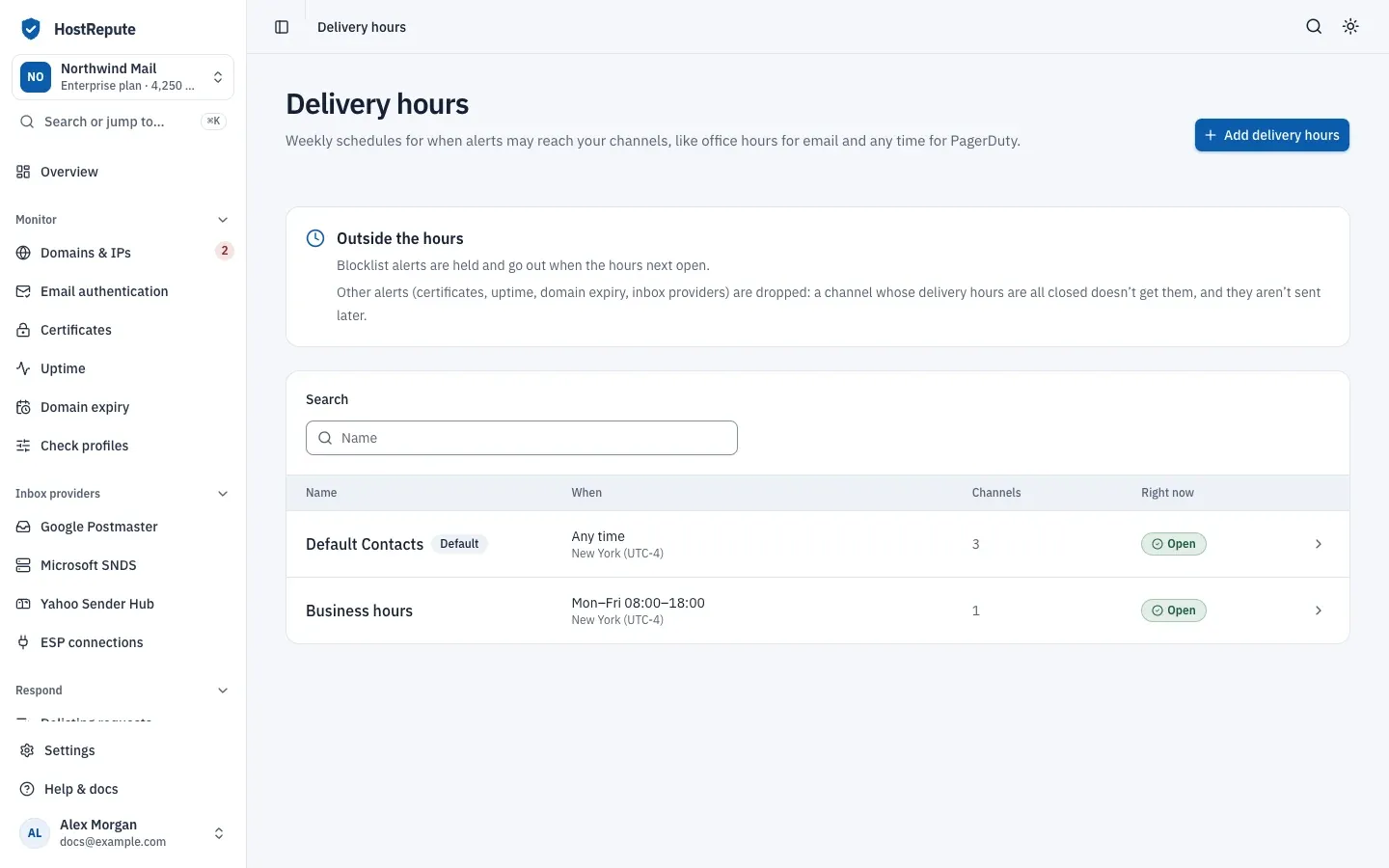
- “Other alerts (certificates, uptime, domain expiry, inbox providers) are dropped: a channel whose delivery hours are all closed doesn’t get them, and they aren’t sent later.”
- A held blocklist alert waits for the delivery hours that open first, and goes out within five minutes of their opening, in one message with the other blocklist alerts held for the same channel and hours. Until then, Alert activity shows it as Held for delivery hours.
- Reminders for delisting requests are the exception: while every channel is closed, HostRepute tries again every five minutes until one is open.
The hours are read in the delivery hours’ own timezone, and each day’s window runs from its start time to its end time, both included. A window can’t run past midnight.
Before you begin
Section titled “Before you begin”- The Developer role or higher to add, change and delete delivery hours. Viewers can see them.
- Room on your plan. Each plan caps how many sets of delivery hours a team can have; the team’s one default set doesn’t count. Compare the plans in Plans and limits.
Add delivery hours
Section titled “Add delivery hours”-
Open Alerts & sharing, then Delivery hours and choose Add delivery hours. The button is greyed out when the team has as many sets as its plan allows.
-
Enter a Name, for example “Office hours” or “On call”, and pick the Timezone. It starts as your browser’s timezone, and every time you enter is in it.
-
Turn on Default delivery hours if new alert channels should start with these hours ticked.
-
Set the Weekly hours. Under Start from, a preset fills in the week:
- Any time: every day, all day. The editor starts with this.
- Office hours: Monday to Friday, 09:00 to 17:00.
- Evenings: every day, 17:00 to 23:59.
- Weekends: Saturday and Sunday, all day.
Then change single days under Day by day: turn a day off to send nothing that day, or set its Start and End on the 24-hour clock. Use Monday’s hours on every day that’s on and Use Monday’s hours every day copy Monday’s window.
-
Check the summary above the presets, then choose Add delivery hours. The page of the new delivery hours opens.
-
Open each channel that should follow them in Alert channels, tick them under Delivery hours and choose Save changes.
You attach delivery hours on the channel, not here: until you do, the page of the delivery hours says “No channel follows these hours yet. Choose them on a channel’s page.”
To manage delivery hours from your own code, use the delivery hours API, which
calls them alert groups (/api/v1/alert-groups). Its schedule has a key for each day, mon to sun, each with
enabled, start and end, the times as HH:MM.
Default delivery hours
Section titled “Default delivery hours”Every new team gets delivery hours named Default Contacts, marked Default, with no schedule, so they’re open at any time. Their timezone is the one in the profile of the person who created the team. The email channel you add during setup follows them.
- Default delivery hours means “New alert channels start with these selected.” You can still untick them when you add a channel. More than one set can be the default.
- If you give Default Contacts hours, every channel that follows it follows those hours from then on.
- Default delivery hours can’t be deleted. To delete them, turn off Default delivery hours first and save.
Read and change delivery hours
Section titled “Read and change delivery hours”The list shows each set’s When, its timezone, how many Channels follow it, and whether it’s Open or Closed Right now. A set with every day turned off shows Never open, and its page warns: “Every day is turned off, so no alert can be delivered through these hours until you turn a day on.”
On the page of a set of delivery hours:
- The header says Open right now or Closed right now.
- The form has the same fields as when you added it. Change them and choose Save changes. Blocklist alerts that are already held keep their due time; if the new hours are closed then, they wait for the next opening.
- When alerts may go out lists each window and the timezone, and Outside these hours repeats what happens to alerts while it’s closed.
- Channels that follow these hours lists the channels that use them, each with its state.
- Delete delivery hours removes them. Channels stop following these hours right away, and any channel left without delivery hours gets alerts at any time.
Defaults and limits
Section titled “Defaults and limits”| Setting | Default | How to change |
|---|---|---|
| Name | 255 characters | Fixed |
| Daily window | One window per weekday, start and end as HH:MM (24-hour), end after start | Set per weekday |
Check that it worked
Section titled “Check that it worked”- The list shows the set with the right When and timezone, and the number of channels you attached.
- Right now matches what you expect for the current time in that timezone.
- A blocklist alert that comes up while the hours are closed shows in Alert activity as Held for delivery hours, with when it’s due to go out.
Troubleshooting
Section titled “Troubleshooting”- The list says No delivery hours yet. Every channel gets alerts at any time. Add a set with Add delivery hours if some channels should wait.
- “The end time must be after the start time.” A window can’t cross midnight. Split it over two days, for example Monday 22:00 to 23:59 and Tuesday 00:00 to 06:00.
- A set shows Never open. Every day is turned off. Turn on at least one day.
- Add delivery hours is greyed out. The team has as many sets as its plan allows. Delete one you don’t use, or move to a bigger plan.
- There’s no way to delete a default set. Its page says Default delivery hours can’t be deleted. Turn off Default delivery hours, save, then delete it.
- Alerts arrive an hour or more off. Check the Timezone: the hours are read in it, not in your own timezone.
- Uptime or certificate alerts never arrive outside office hours. They are dropped while all of a channel’s delivery hours are closed. Keep one channel, such as PagerDuty, without delivery hours for alerts you can’t miss.