

Connect Google Postmaster Tools
Connect Google Postmaster Tools to HostRepute and you see what Gmail reports about each of your sending domains next to your blocklist results: spam rate, SPF, DKIM and DMARC pass rates, encryption, delivery errors and whether the domain meets Gmail’s sender requirements. Postmaster Tools is Google’s free dashboard for mail sent to personal Gmail accounts (addresses ending in @gmail.com or @googlemail.com), and it reports only on domains whose ownership is verified (Google: Set up Postmaster Tools, checked October 2026). HostRepute reads it once a day. It never sends email, and it changes your domains or their users in Postmaster Tools only when you ask it to.
Before you begin
Section titled “Before you begin”- A Google account for Postmaster Tools. Use the account that has your domains in Postmaster Tools, or any Google account if you’ll add the domains from HostRepute. HostRepute reads only the domains that account can see.
- The Developer role or higher to connect an account, add or verify domains, sync and change settings. A Viewer can read everything but change nothing.
- Access to your DNS if a domain isn’t verified yet: ownership is proved with a TXT record.
- A plan or the trial. Your plan sets how many Google accounts the team can connect and how many Postmaster domains it monitors at a time, across all its Google accounts. The limits are in Plans and limits.
What HostRepute asks Google for
Section titled “What HostRepute asks Google for”When you connect, HostRepute asks Google for these scopes, with offline access so the daily sync can run without you. Google shows its consent screen every time you connect or reconnect.
| Scope | What it allows |
|---|---|
openid, profile, email |
Signing in. HostRepute reads the account’s email address to name the connection. |
https://www.googleapis.com/auth/postmaster.domain |
“View and manage the domains you have registered with Postmaster Tools” |
https://www.googleapis.com/auth/postmaster.traffic.readonly |
“Get email traffic metrics for the domains you have registered with Postmaster Tools” |
Only when you choose Grant access management on a domain page does HostRepute ask for one
more scope, https://www.googleapis.com/auth/postmaster.user: “View and manage users for the domains you have
registered with Postmaster Tools”. The quoted descriptions are Google’s, from the
Postmaster Tools API discovery document
(checked October 2026). HostRepute uses the domain scope to list your domains and, when you ask it to, to add, verify or
delete a domain. It uses the traffic scope to read the daily numbers and the compliance status.
Connect a Google account
Section titled “Connect a Google account”-
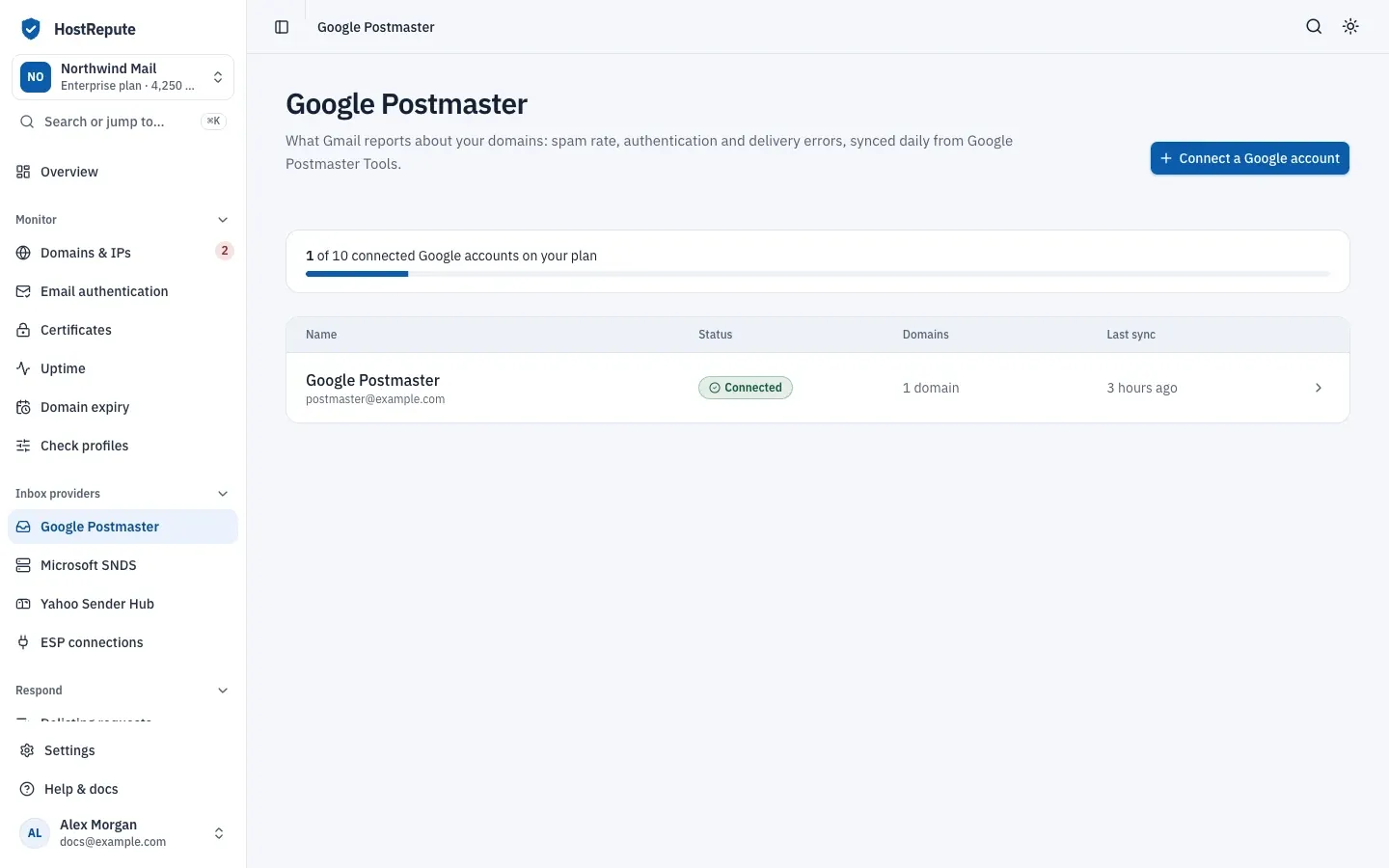
Open Inbox providers, then Google Postmaster and choose Connect a Google account.
-
In the dialog, type a Name (optional) if you want one, for example “Marketing domains”. Without one, the connection is named after the Google account’s email address.
-
Choose Continue to Google, pick the Google account and approve every permission Google asks for. Google sends you back to HostRepute, and the first sync starts. It reads the account’s domains and up to the last 30 days of Gmail numbers for each verified one.
Each domain the Google account has in Postmaster Tools appears under Domains on the account’s page, including domains that aren’t verified yet. When there are more than your plan monitors, the extra ones arrive paused with Paused: plan limit.
Add and verify a domain
Section titled “Add and verify a domain”You can add a domain to Postmaster Tools from HostRepute, or verify one that the account lists as unverified, without
opening Google’s site. Google asks for the domain you authenticate outgoing mail with: your DKIM signing domain (d=) or
your SPF (Return-Path) domain (Google: Set up Postmaster Tools,
checked October 2026). Subdomains count as separate domains.
-
On the Google account’s page, under Domains, choose Add a domain, enter the Domain and choose Add domain. HostRepute registers it in Postmaster Tools and uses one of your plan’s domain slots. For a domain that’s already listed but not verified, choose Get the DNS record in its row instead.
-
Publish the TXT record at your DNS provider. HostRepute shows it in two places, with copy buttons for each part:
- On the account’s page, in the domain’s row, in the box headed Add this DNS record to prove you own followed by the domain name: the record type, Host and Value.
- On the domain’s own page, in the card Verify you own this domain: the same
Type, Host and
Value. The host is the domain itself; some DNS providers write it as
@.
-
Wait. HostRepute checks the record on its own, starting about two minutes after you add the domain and then at growing intervals for up to 72 hours. To check sooner, choose Check the record now in the row or Verify now on the domain’s page.
When Google confirms ownership, the domain shows Verified and HostRepute starts syncing its numbers. For up to 15 minutes after verification, the domain’s page keeps checking for the first numbers, so you can leave it open.
Read the numbers
Section titled “Read the numbers”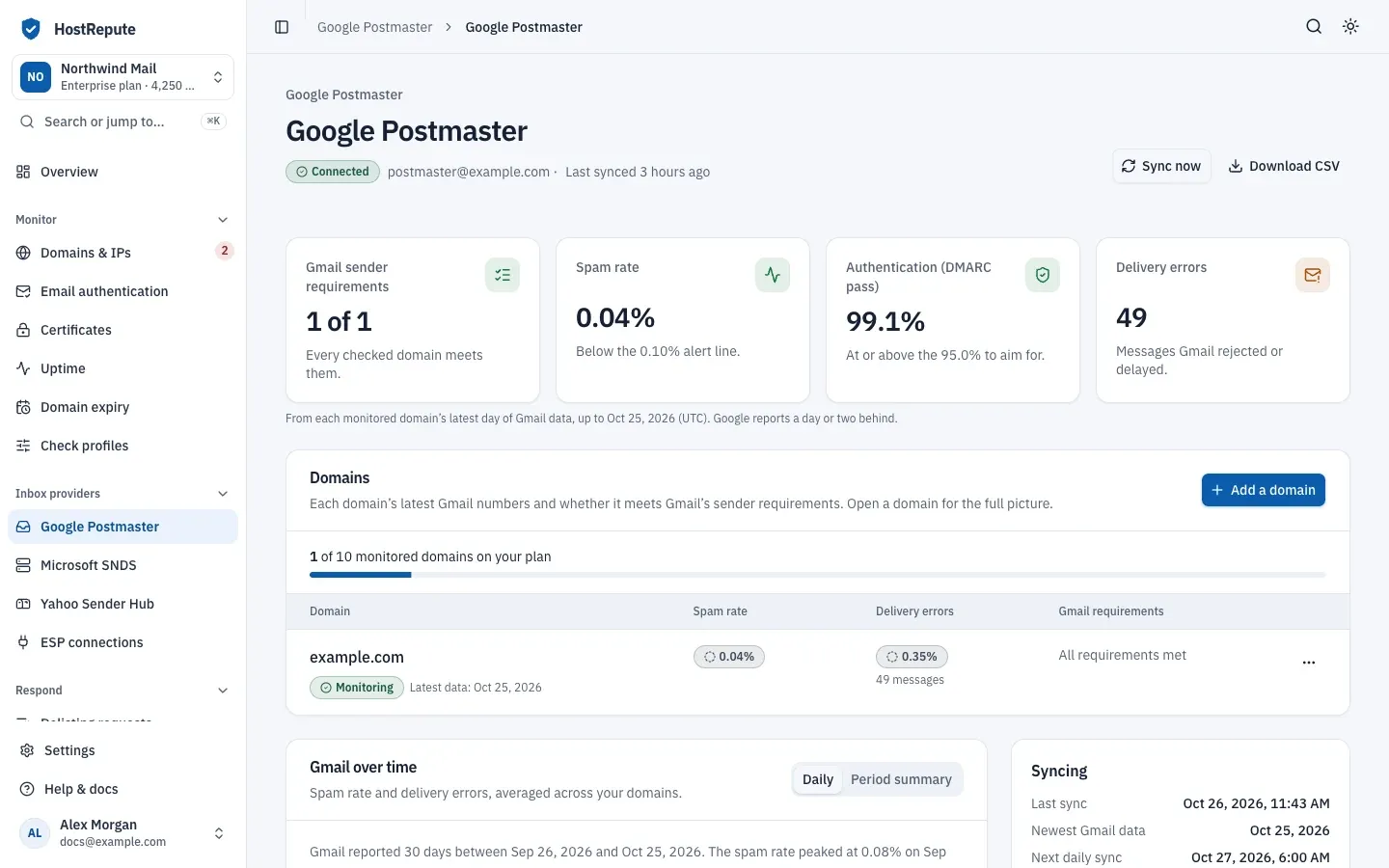
The Google account’s page sums up every monitored domain from its latest day of Gmail data: how many domains meet Gmail’s sender requirements, the average Spam rate against the 0.1% alert line, Authentication (DMARC pass) against a 95% target, and the number of messages with Delivery errors. Gmail over time charts spam rate and delivery errors across your domains for up to 90 days.
Open a domain for its own page:
- Gmail’s verdict at the top: Meets Gmail’s sender requirements or Gmail says this domain needs work, with Google’s reason.
- Over time: spam rate, authentication (DMARC, DKIM and SPF pass rates), delivery errors (rejected and deferred) and Encryption (outbound and inbound TLS), by UTC day, over 7, 30 or 90 days.
- Period summary: the same numbers for the last 7, 30 and 90 days. From Google is Google’s own figure for the period; Estimated is HostRepute’s average of the daily numbers, each day counted equally, used when Google didn’t return a current figure.
- Gmail’s sender requirements: each requirement Gmail checks, such as SPF and DKIM, the DMARC policy, forward and reverse DNS, TLS encryption, the user-reported spam rate and one-click unsubscribe, with how to fix one that needs work. Gmail’s limits are in its email sender guidelines (checked October 2026).
- Delivery errors: why Gmail rejected or deferred authenticated mail, by reason.
- Spam rate per campaign: Gmail’s spam rate per Feedback-ID over the last 90 days. Gmail reports
it only for mail that carries a
Feedback-IDheader (Google: Feedback Loop, checked October 2026). - About this domain: the account’s access to the domain, whether Google shares data for it, and when it was registered, verified and synced.
Google’s numbers trail by a day or two, and on days with little mail Google may leave some out to protect its users’ privacy (Google: Postmaster Tools dashboards, checked October 2026).
Alerts and the reputation score
Section titled “Alerts and the reputation score”After each sync, HostRepute alerts your alert channels when a monitored domain’s latest spam
rate is above 0.1%, its delivery error rate is above 1%, or a sender requirement needs work (once a day for the same
set of requirements). Every active channel gets the alert unless its delivery hours are
closed at that moment, and the alert isn’t kept for later. If the team has no active alert channel, the team Owner gets
it by email. A webhook channel receives these alerts as the alert.reputation_issue event; read
receive webhooks.
For a domain in Domains & IPs, Postmaster data counts for 10 of the 100 points of its
reputation score. HostRepute uses the data of the same domain or, for a
subdomain such as mail.example.com, of example.com.
Share a domain with other Google accounts
Section titled “Share a domain with other Google accounts”The Domain access panel on a domain’s page lists the Google accounts that can see the domain in Postmaster Tools. Only the domain’s owners and admins at Google can see this list.
-
The first time, choose Grant access management and approve the extra permission at Google.
-
Under Give someone access, enter the Google account email, pick a Permission (Reader sees dashboards and statistics; Admin also manages who has access) and choose Add user.
-
To take access away, choose Remove access next to the account. It loses access to the domain in Postmaster Tools immediately.
Syncing, history and CSV export
Section titled “Syncing, history and CSV export”- HostRepute syncs every active Google account once a day at 10:00 UTC. Syncing on the account’s page shows the last sync, the newest Gmail data and the next daily sync.
- Sync now starts a sync at once, for example after you verified a domain in Postmaster Tools.
- Turning off Sync every day in Settings pauses syncing for every domain of that account. The history stays.
- Daily Gmail numbers are kept for 90 days.
- Download CSV exports every stored day for every domain of the account: spam rate, Feedback Loop spam rate, SPF, DKIM and DMARC pass rates, outbound and inbound TLS, delivery error rate and count, and the reject and temporary-failure rates.
Stop monitoring or remove a domain
Section titled “Stop monitoring or remove a domain”Use the menu on a domain’s own page. On the account’s page, the menu in the domain’s row offers the same actions for domains you added from HostRepute, and Stop monitoring for the others.
- Stop monitoring frees a plan slot. The domain stays listed and its history stays; Start monitoring resumes it if a slot is free.
- Remove from HostRepute deletes its numbers from HostRepute and stops syncing it, and later syncs don’t bring it back. The domain stays in Postmaster Tools.
- Delete from Google, offered for domains you added from HostRepute, removes it from Postmaster Tools and from HostRepute. To monitor it again, you add and verify it from the start.
To disconnect the whole Google account, use Danger zone on its page and confirm. HostRepute forgets the Google sign-in and deletes every synced number for its domains; the domains stay in Postmaster Tools.
Check that it worked
Section titled “Check that it worked”- The account shows Connected on Google Postmaster, with the Google email under its name and a recent Last sync.
- Each verified domain shows Monitoring and a Latest data day, and the summary cards show numbers instead of No data.
The statuses on the account and its domains:
| Status | Meaning |
|---|---|
| Connected | Google Postmaster: a Google account is connected and the last sync didn't fail. Microsoft SNDS: a Microsoft sign-in or Data Access links are set up and the last sync didn't fail. |
| Syncing | A sync with Google or Microsoft is running now. |
| Needs attention | The stored sign-in stopped working and you need to reconnect, or the last sync failed. For Google Postmaster it also shows when only some domains synced. |
| Not connected | No Google account is connected yet (Google Postmaster), or no Microsoft sign-in or Data Access links are set (Microsoft SNDS), so nothing syncs. |
| Paused | Connected, but turned off, so nothing new is read until you turn it back on. |
| Status | Meaning |
|---|---|
| Monitoring | HostRepute reads this domain's Gmail data on each sync. |
| Sync problem | The last sync of this domain returned an error, shown on the domain's row. |
| Paused: plan limit | Your plan monitors a set number of Postmaster domains at a time, so this one was paused. The domain's own page shows Plan limit. |
| Gone from Postmaster Tools | The domain is no longer in the connected Google account's Postmaster Tools. The domain's own page shows Removed at source. |
| Paused | Monitoring was turned off for this domain. The domain's own page shows Deactivated. |
| Pending verification | You added the domain in HostRepute, which is waiting for the DNS TXT record that proves you own it. The verification card shows Waiting for DNS record. |
| Verifying | HostRepute is looking for the DNS record and asking Google to confirm it, retrying on its own for up to 72 hours. The verification card shows Checking DNS. |
| Verified | Google confirmed you own the domain; its data appears after the next sync. |
| Verification failed | Google rejected the verification, or the record wasn't found within 72 hours. Check it's published exactly as shown, then try again. |
| Verified at Google | Google's own record says ownership of the domain is verified. |
| Not verified at Google | Google says ownership isn't verified, so it shares no numbers until you prove you own the domain with a DNS record. |
| No data access | Google shares no statistics or compliance data for this domain with the connected account, because ownership isn't verified yet or the account has no access to it. |
| Compliant | Gmail's verdict: the domain meets Gmail's sender requirements. Each requirement in the checklist also shows Compliant or Needs work. |
| Needs work | Gmail's verdict: one or more sender requirements aren't met. HostRepute alerts your channels when a requirement needs work. |
| Not enough data | Gmail hasn't given a verdict yet, for example because there's too little mail from the domain or no data access. |
| Owner | The connected Google account verified the domain and has full control, including who has access. |
| Admin | The account sees all dashboards and can add or remove Readers and Admins. |
| Reader | The account sees dashboards and statistics only. |
| No access | The domain is listed in Postmaster Tools, but the account can't see any of its data. |
Troubleshooting
Section titled “Troubleshooting”- No Google account connected yet with no Connect a Google account button. Your role can’t connect accounts; ask a member with the Developer role or higher.
- “Google did not grant all required Postmaster scopes” or “Google did not grant offline access” after connecting. A permission was unticked on Google’s consent screen. Connect again and approve every permission.
- “You have reached the maximum number of Google Postmaster integrations for your current plan.” Delete or pause another Google account, or move to a bigger plan.
- Add a domain is greyed out, or a domain shows Paused: plan limit. All your plan’s domain slots are in use. Choose Stop monitoring on another domain first. Once a day, HostRepute also pauses Google accounts above the plan’s limit, keeping the oldest ones.
- “Google denied the request. Confirm the connected account has Postmaster domain-management access (Developer Preview) enabled…” when you add a domain. Google refused the preview feature for this account. Add and verify the domain in Postmaster Tools, then choose Sync now.
- Verification failed, or the card reads We couldn’t verify ownership. The TXT record wasn’t found within 72 hours. Check that it’s published exactly as shown on the domain itself, then choose Try again.
- No data access or This Google account can’t see this domain’s data. The account isn’t a verified owner and nobody shared the domain with it. Verify the domain, or ask its owner to add this account as a Reader in Postmaster Tools.
- Gone from Postmaster Tools. The domain was removed from Postmaster Tools for this account. Add it there again, then choose Start monitoring.
- Reconnect Google to keep syncing. Google stopped accepting the stored sign-in, for example because access was revoked in the Google account. Choose Reconnect Google and approve access again.
- The numbers stay at No data for a verified domain. Google hasn’t reported that domain yet: its numbers arrive a day or two late and may be missing on low-volume days. Check again after the next daily sync.