

Publish a status page
An email reputation status page is a web page that shows customers or partners the current state of the domains and IPs you choose: blocklist listings, reputation score, certificate, email authentication and uptime. Only people with its secret link can open it, search engines are asked not to list it, and visitors can subscribe to an email when the status changes. Nobody needs a HostRepute account to read it.
Before you begin
Section titled “Before you begin”- The Business or Enterprise plan, with room for another page.
- The Developer role or higher to create, change and delete status pages. Viewers can see the pages and who follows them.
- The domains and IPs to show, added to Domains & IPs. Each one’s card fills from
the checks you already run:
- its latest blocklist scan and reputation score;
- the latest certificate check of the same hostname;
- the latest email authentication check of the domain;
- the uptime check whose Show on status pages as points at it.
Create a status page
Section titled “Create a status page”-
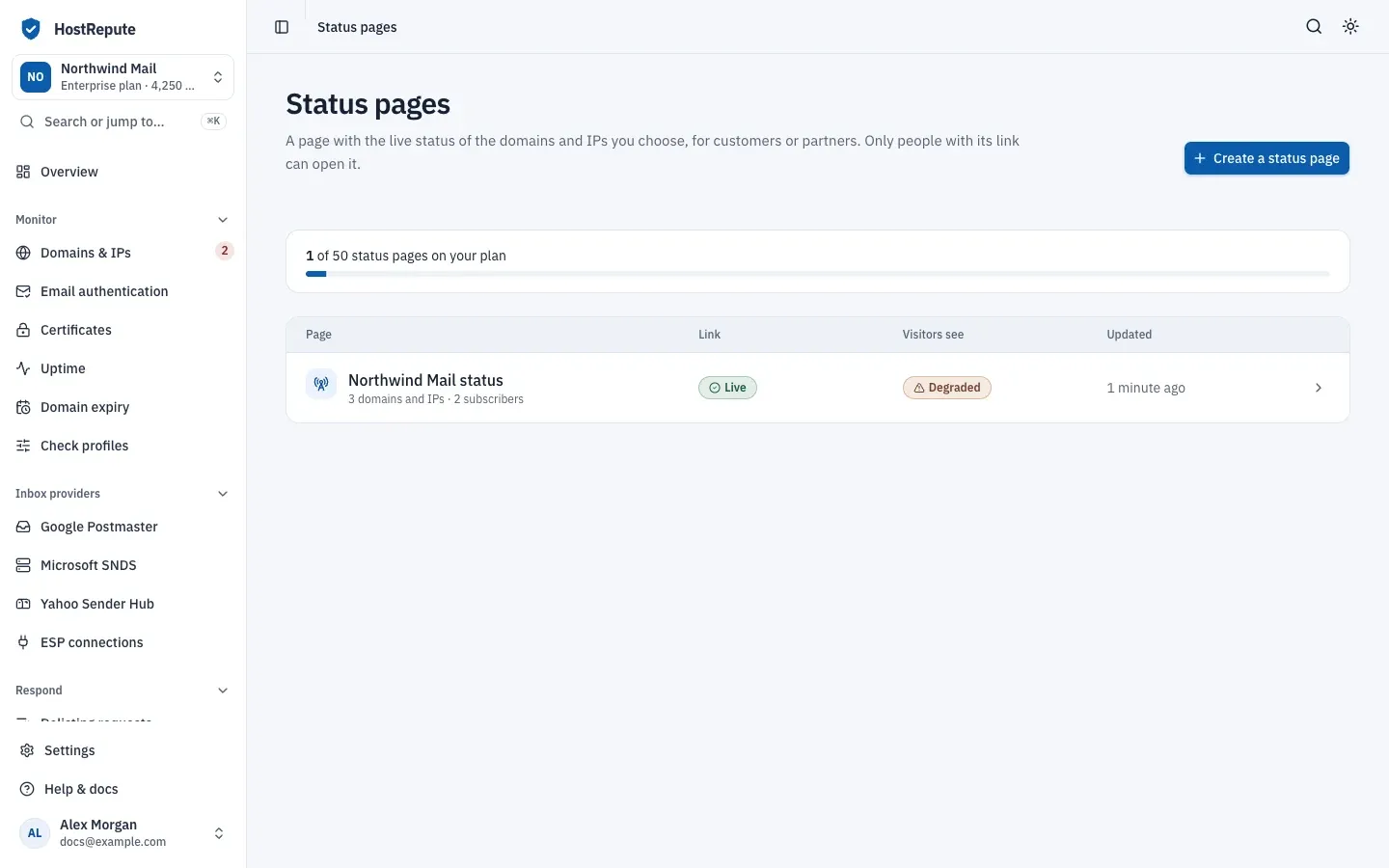
Open Alerts & sharing, then Status pages and choose Create a status page. The button is greyed out when your plan’s limit is reached.
-
Enter a Name, the title at the top of the page, and an optional Intro, a sentence under it such as what these domains send.
-
Under Domains and IPs on the page, tick the domains and IPs to show, from 1 to 50. A filter appears above the list once you have more than eight.
-
Leave Publish this page off for now, so you can check the page before anyone can open it. Keep Show “Verified by HostRepute” on to show a badge at the top that tells visitors where the status comes from, or turn it off.
-
Choose Create status page. The page’s settings open, with a Preview of what visitors will see.
-
When the preview looks right, turn on Publish this page in Settings and choose Save changes.
-
Under Share this page, copy the Public link and send it to the people who should see the page. Open the public page opens it in a new tab.
| Setting | Default | How to change |
|---|---|---|
| Name | 120 characters | Fixed |
| Summary | 500 characters | Fixed |
| Domains and IPs on a page | 1 to 50, each listed once | Fixed |
| Subscribe requests on a public status page | 6 a minute per IP address | Fixed |
What visitors see
Section titled “What visitors see”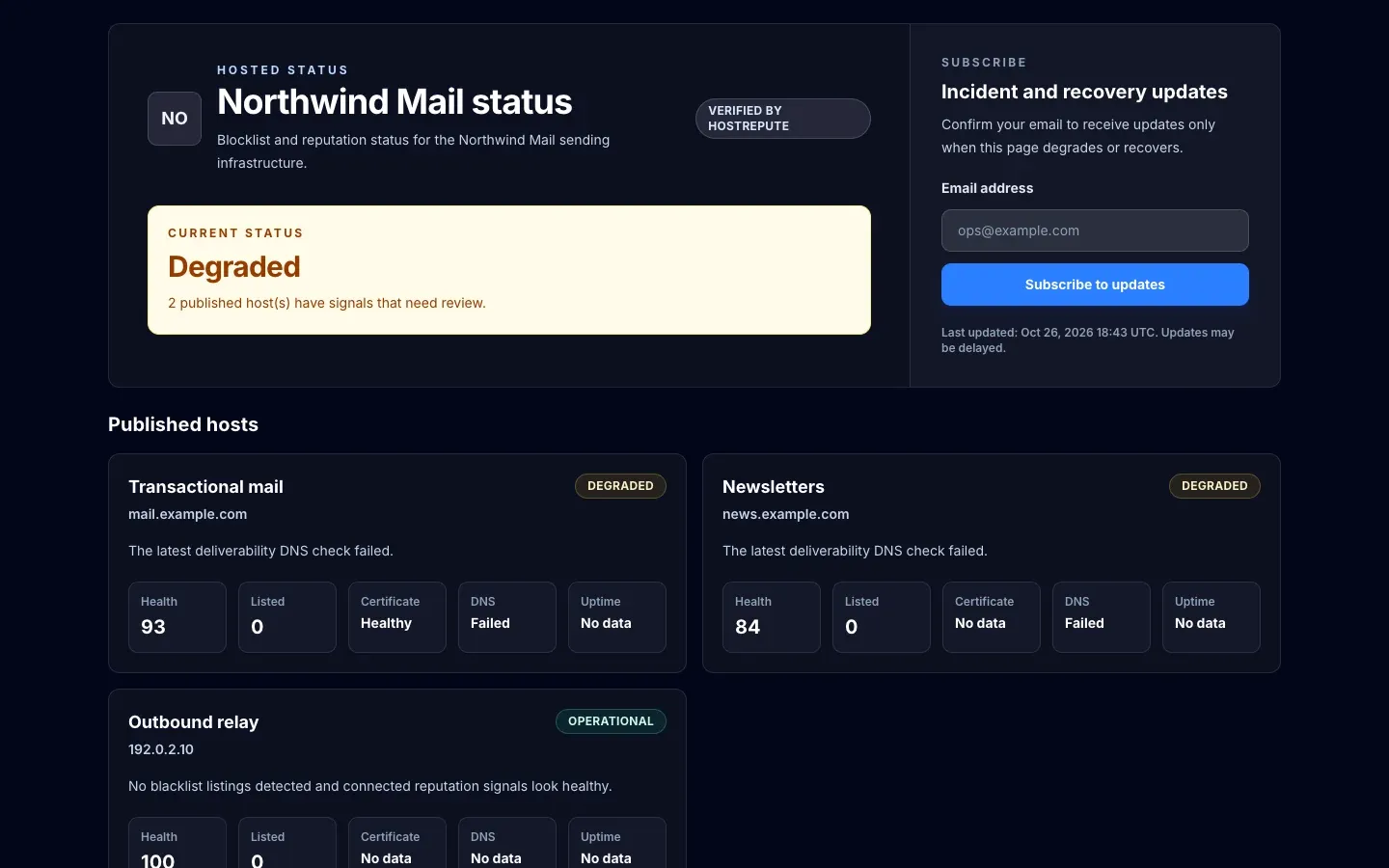
The public page has a dark design of its own: it looks the same whatever light or dark setting the visitor uses. From top to bottom it shows:
- your team’s logo (or its initials), the name and intro, and the “Verified by HostRepute” badge if it’s on;
- the page’s current status, which is the worst status of its domains and IPs, with a one-line summary;
- the Incident and recovery updates form and when the page was last updated;
- a card for each domain or IP: its status and why, its reputation score, how many blocklists list it, its certificate, DNS (email authentication) and uptime results, its uptime over 30 days and its recent uptime outages;
- the recent events, up to 20.
Each domain or IP, and the page as a whole, shows one of these statuses:
| Status | Meaning |
|---|---|
| Operational | Every published domain or IP has a completed scan and a reputation score, and nothing on it is degraded or an incident. The page as a whole shows the worst status of its domains and IPs. |
| Degraded | No incident, but a certificate is expiring soon, email authentication is failing or needs work, uptime is slow, or the reputation score is below 75. |
| Incident | The domain or IP is on a blocklist, its uptime check is down, its latest blocklist scan failed, or its certificate is expired, not trusted or couldn't connect. |
| Pending | A domain or IP has no completed scan or no reputation score yet, or the page has no published domains or IPs. |
HostRepute refreshes published pages every few minutes, so a page changes soon after the scans and checks behind it. Between scans it stays as it is.
When the link opens
Section titled “When the link opens”The list’s Link column and the badge at the top of a page’s settings show whether its link opens:
| Status | Meaning |
|---|---|
| Live | Published and included in your plan, so anyone with the link can see it. Search engines are asked not to list it. |
| Draft | Not published, so the link doesn't open. Turn on Publish this page and save to share it. |
| Paused | HostRepute paused it because your plan no longer includes status pages or you have more pages than it allows, so the link doesn't open. It's published again when the plan allows it. |
| Not on your plan | Your plan doesn't include this page, so the link doesn't open. |
When your plan stops including status pages, or you have more pages than it allows, HostRepute pauses the newest ones first. When the plan allows them again, it publishes the paused pages again by itself, oldest first.
Subscribers and updates
Section titled “Subscribers and updates”Visitors subscribe on the page itself: they enter an email address under Incident and recovery updates, choose Subscribe to updates and confirm from the email HostRepute sends them. Its link works for 7 days.
HostRepute records an event in Recent events each time the page’s overall status changes, and emails confirmed subscribers about the first three kinds:
| Status | Meaning |
|---|---|
| Critical | The page's overall status became Incident. Subscribers get an email. |
| Warning | The page's overall status became Degraded. Subscribers get an email. |
| Recovered | The overall status went back to Operational from Degraded or Incident. Open events are marked resolved, and subscribers get an email. |
| Info | Any other change of the overall status, such as to Pending or from Pending to Operational. Subscribers aren't emailed. |
A status change that HostRepute finds while you save the page’s settings is recorded, but it doesn’t email anyone. Every update email has an unsubscribe link, and mail apps that support one-click unsubscribe show their own button.
Subscribers, on the page’s settings, lists the 50 most recent subscribers:
| Status | Meaning |
|---|---|
| Subscribed | Confirmed their email address, so they get an email for every Critical, Warning and Recovered event. |
| Not confirmed | Subscribed on the page but hasn't confirmed from the email yet, so they get no updates. |
| Unsubscribed | Turned updates off from an update email. Subscribing on the page again sends a new confirmation email. |
You can’t add, import or remove subscribers in HostRepute, and you can’t post an incident or a message of your own: events come only from status changes.
Replace the link or take the page down
Section titled “Replace the link or take the page down”- Replace the link if it reached people it shouldn’t have: choose Make a new link and confirm. The old link stops working at once, so share the new one with everyone who should still see the page. Subscribers stay subscribed, and their next email links to the new address.
- Take the page down for a while by turning off Publish this page and saving. The page becomes a Draft and its link stops working until you publish it again.
- Delete it with Delete status page in Danger zone. Its link stops working, and its subscribers and event history are deleted.
Check that it worked
Section titled “Check that it worked”- The list shows the page with Live under Link and a status under Visitors see.
- The Public link opens the page in a private browser window, where you aren’t signed in.
- After you subscribe with your own address and confirm, Subscribers lists it as Subscribed.
Troubleshooting
Section titled “Troubleshooting”- “Status pages aren’t on your plan”. The team is on Professional or on the trial. Pages you already made are kept, but their links don’t open. Upgrade to Business or Enterprise, or ask a team owner.
- Create a status page is greyed out. The team has as many pages as its plan allows. Delete one or upgrade.
- Publish this page is greyed out with “this one is over that”. The page is newer than the ones your plan allows. Delete an older page, or upgrade.
- The dialog says “Add a domain or IP to monitor first.” A status page needs at least one domain or IP from Domains & IPs.
- The link opens an error page. The page is a Draft, Paused or Not on your plan, or someone replaced the link. Check the badge at the top of the page’s settings.
- A domain or IP shows Pending. It has no finished scan or no reputation score yet. Wait for its first scan.
- A card says “No data” for Certificate, DNS or Uptime. There’s no check for it yet: add a certificate check of the same hostname, run an email authentication check of the domain, or set the uptime check’s Show on status pages as to this domain or IP.
- A domain or IP shows Incident but isn’t listed. Its latest blocklist scan failed; see the caution under What visitors see.
- A visitor didn’t get the confirmation email. Ask them to check their spam folder. Subscribing again sends a new email once 10 minutes have passed since the last one.
- Recent events says “Nothing yet.” The page’s overall status hasn’t changed since you created it.
Related
Section titled “Related”- Monitor uptime, to show uptime on a page
- How the reputation score works
- Blocklist monitoring
- Share a scan report
- Plans and limits