

Review sent alerts
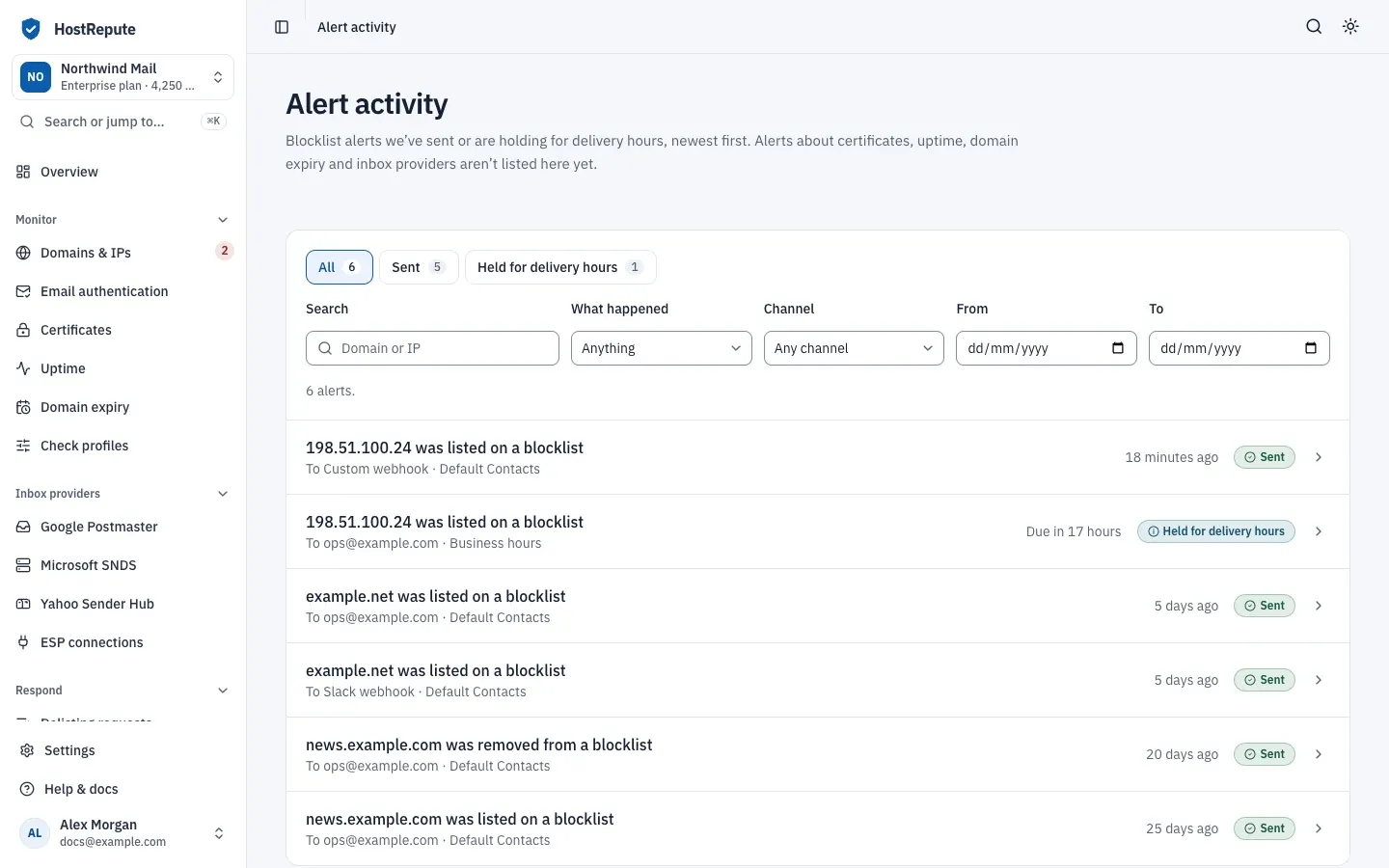
Alert activity is your team’s alert history for blocklists: every blocklist alert HostRepute sent to one of your alert channels, or is holding for its delivery hours, newest first, with where it went and what happened to it.
Before you begin
Section titled “Before you begin”- Any role. Every member of the team, Viewers included, can see alert activity.
- An alert channel that’s on. Blocklist alerts come from scheduled scans and from the first scan of a domain or IP you add; manual scans and API checks never send one. Read Blocklist monitoring for when scans run.
Find an alert
Section titled “Find an alert”-
Open Alerts & sharing, then Alert activity.
-
Use the quick filters at the top: All, Sent or Held for delivery hours, each with its count. Not sent yet appears only while an alert has that status.
-
Narrow the list down:
- Search matches the name or address of a domain or IP.
- What happened offers Listed on a blocklist and Removed from a blocklist, the only two kinds of alert the page records.
- Channel picks one type of channel.
- From and To limit the dates: when the alert was sent, or when it’s due if it’s still held.
On a phone these filters are under More filters. Clear filters shows every alert again.
-
Choose an alert to open its page.
Each row says what happened, for example “example.net was listed on a blocklist”, the channel it went to and the delivery hours it went through, when it was sent or when it’s due, and its status. HostRepute records one alert per domain or IP and channel: a listing that three channels hear about shows three times.
Delivery statuses
Section titled “Delivery statuses”| Status | Meaning |
|---|---|
| Sent | The alert went out to its channel: right away when the channel follows no delivery hours or one of them is open, otherwise when its delivery hours opened. |
| Held for delivery hours | Every set of delivery hours the channel follows was closed, so the alert waits and goes out when the first one opens. |
| Not sent yet | The alert has no send time yet. A cleanup job sets it to the next opening of its delivery hours, or deletes it when it's more than 7 days old or its delivery hours were deleted. |
Sent means HostRepute sent the alert to the channel. It doesn’t confirm that Slack, PagerDuty or your mail server accepted it: to check a channel, use Send a test alert on its page in Alert channels.
These are the two kinds of alert the page records:
| Status | Meaning |
|---|---|
| Listed on a blocklist | A scheduled scan found a domain or IP on a blocklist after it was clean. Alert activity records only blocklist alerts: this one and Removed from a blocklist. |
| Removed from a blocklist | A scheduled scan found a domain or IP clean again after it was listed. |
Read an alert’s page
Section titled “Read an alert’s page”- Details names the Domain or IP, how many Blocklists listed it at the time, where it went (Sent to, or Goes to while it’s waiting), and the Delivery hours it went through, or None when the channel followed none.
- Open the scan that found this opens the scan result, where you can see each listing and request a removal.
- What happened to this alert lists each step with its time: when the alert was created, whether it was held for delivery hours and when it was due, and when it was sent. A step that hasn’t happened yet says so.
A channel or delivery hours deleted since the alert went out stay named, marked “(channel since deleted)” or “(since deleted)”. Deleting a channel never removes its alert activity.
Check that it worked
Section titled “Check that it worked”- Within five minutes of a scheduled scan that finds a domain or IP newly listed or removed, the alert appears here once for each channel that’s on and gets that kind of blocklist alert.
- A channel that follows closed delivery hours shows the alert as Held for delivery hours, with when it’s due; once it’s sent, the row changes to Sent.
Troubleshooting
Section titled “Troubleshooting”- The page says No alerts yet. No blocklist alert has gone out yet: no scheduled scan has found a domain or IP newly listed or removed since your channels were added. Use Check your alert channels to make sure at least one channel is on.
- The page says “No alerts match these filters”. Widen the dates, or choose Clear filters.
- A certificate, uptime or inbox provider alert isn’t listed. Alert activity records only blocklist alerts. Check the channel itself, or the page of the monitor that alerted.
- A listing has no row for one of your channels. The channel was paused at the time, or a scheduled scan didn’t find the change: a manual scan never alerts. A removal has no row on channels set to Only when listed.
- An alert stays Held for delivery hours. All of the channel’s delivery hours are closed. It goes out within five minutes of the time it’s due. To get it sooner, change the channel’s delivery hours.
- An alert shows Not sent yet. It has no send time. A cleanup job runs every hour and gives it the next opening of its delivery hours, or deletes it when it’s more than 7 days old or its delivery hours were deleted.
- An alert shows Sent but never arrived. Check the channel’s settings and send a test alert from its page. For a webhook channel, your endpoint must answer with a 2xx status within 10 seconds.