

Blocklist monitoring
Blacklist monitoring, or blocklist monitoring as HostRepute calls it, means checking your domains and IPs against the lists that mail servers consult, again and again, so you hear about a listing before it costs you mail. Most of these lists are DNSBLs (DNS-based blocklists): lists of IP addresses or domains reported for spam or abuse, which a mail server looks up in DNS while mail arrives. HostRepute scans every domain and IP you monitor on your team’s schedule, records each blocklist’s answer, and alerts you when one is listed or removed.
How a scheduled scan works
Section titled “How a scheduled scan works”- Every 30 minutes, HostRepute looks for teams whose next scan is due.
- For a team that’s due, it scans all of its monitored domains and IPs together, up to the plan’s limit, oldest first. Paused ones are skipped.
- It looks each domain or IP up on every blocklist in its check profile. A blocklist’s answer for the same address is reused for up to an hour, by every scan.
- Each blocklist answers that it lists the domain or IP, that it doesn’t, or doesn’t answer at all, for example because the lookup timed out.
- The scan ends as Listed when at least one blocklist that answered lists the domain or IP, Clean when none does, and Scan failed when no blocklist answered.
- A finished scan adds a point to the reputation score history. When the check profile has Check email authentication with every scan on, its email authentication checks run next.
- If the domain or IP went from clean to listed, or from listed to clean, HostRepute sends a blocklist alert to your alert channels, following their delivery hours.
- The team’s next scan is due one interval after this one finishes.
Scheduled scans never use credits. A domain or IP you add with monitoring on gets its first scan straight away, also without credits; if that scan finds it listed, your alert channels hear about it.
How often we check
Section titled “How often we check”One setting decides how often all of a team’s domains and IPs are scanned: Settings, then Team settings, then How often we check, described in Choose how often we check. Check profiles have no schedule of their own; each one says under When it runs how often the team’s scans run and when the next one is due, with a link to Change how often in Team settings.
Check every offers a fixed set of intervals, from Every 30 minutes to Every 2 days, each with how many checks a day it means. It lists only the intervals your plan allows. Until you pick one, the team uses its plan’s default, and the field says so.
| Plan | Default interval | Fastest interval |
|---|---|---|
| Professional | Every 24 hours | Every 60 minutes |
| Business | Every 12 hours | Every 30 minutes |
| Enterprise | Every 6 hours | Every 30 minutes |
The 14-day trial uses the Professional plan’s intervals. Every other plan limit is in Plans and limits.
- Who can change it. In the portal, the field is open to the team’s Owner and Admins; for other roles it says “Only team owners and admins can change this.”
- After a plan change. If the team’s interval is faster than its new plan allows, scans slow down to the plan’s fastest interval without you changing anything.
- Exact timing. Because HostRepute looks for due teams every 30 minutes, and the next scan is due one interval after the previous one finished, a scan can start up to 30 minutes after it’s due.
What a scan finds
Section titled “What a scan finds”Each blocklist in a scan ends with one of these results:
| Status | Meaning |
|---|---|
| Listed | This blocklist answered and lists the domain or IP. The row shows how to ask for removal and the raw response. |
| Clean | This blocklist answered and doesn't list it. |
| Didn’t answer | The lookup failed, for example it timed out. It counts as neither listed nor clean and is left out of the blocklist score; a scan only fails when no blocklist answered. |
The scan as a whole gets one result:
| Status | Meaning |
|---|---|
| Clean | The scan finished and no blocklist that answered listed it. Blocklists that didn't answer are marked as such in the scan's details. |
| Listed | At least one blocklist that answered listed it in this scan. |
| Checking | The scan is still running; results fill in as each blocklist answers. |
| Scan failed | No blocklist answered, or none ran, so the scan has no result. It doesn't change the listing state or add a point to the score trend, and the credits for a manual scan are refunded. |
Next to the result, the scan page says what changed since the previous scan: Newly listed, Resolved, Still listed, No change or Scan failed. A domain or IP’s own status in Domains & IPs comes from its latest scan; Statuses and what they mean lists every status.
A failed scan is not a listing
Section titled “A failed scan is not a listing”Scan failed means the scan has no result, usually because no blocklist answered in time. It says nothing about your reputation:
- It doesn’t change whether the domain or IP counts as listed, sends no alert and adds no point to the score history.
- A scan that is still checking after 15 minutes is marked as failed. HostRepute tries again at the next scheduled scan.
- If every scan of a domain or IP fails, look at its check profile: a profile without blocklists can’t be scanned, for example one created through the API or one that only runs email authentication checks. Its email authentication checks don’t run on schedule either, because they follow a scan that finished.
When only some blocklists don’t answer, the scan still finishes. Listings from the blocklists that answered count, and a domain or IP that was listed only counts as clean again once the blocklists that listed it have answered.
Scan history and trends
Section titled “Scan history and trends”A domain or IP’s page shows Listings over time, a chart of how many blocklists listed it at each scan over up to 90 days, and Scan history, every scan, newest first. History stays as long as the domain or IP is in your team; Add and manage domains and IPs describes the page.
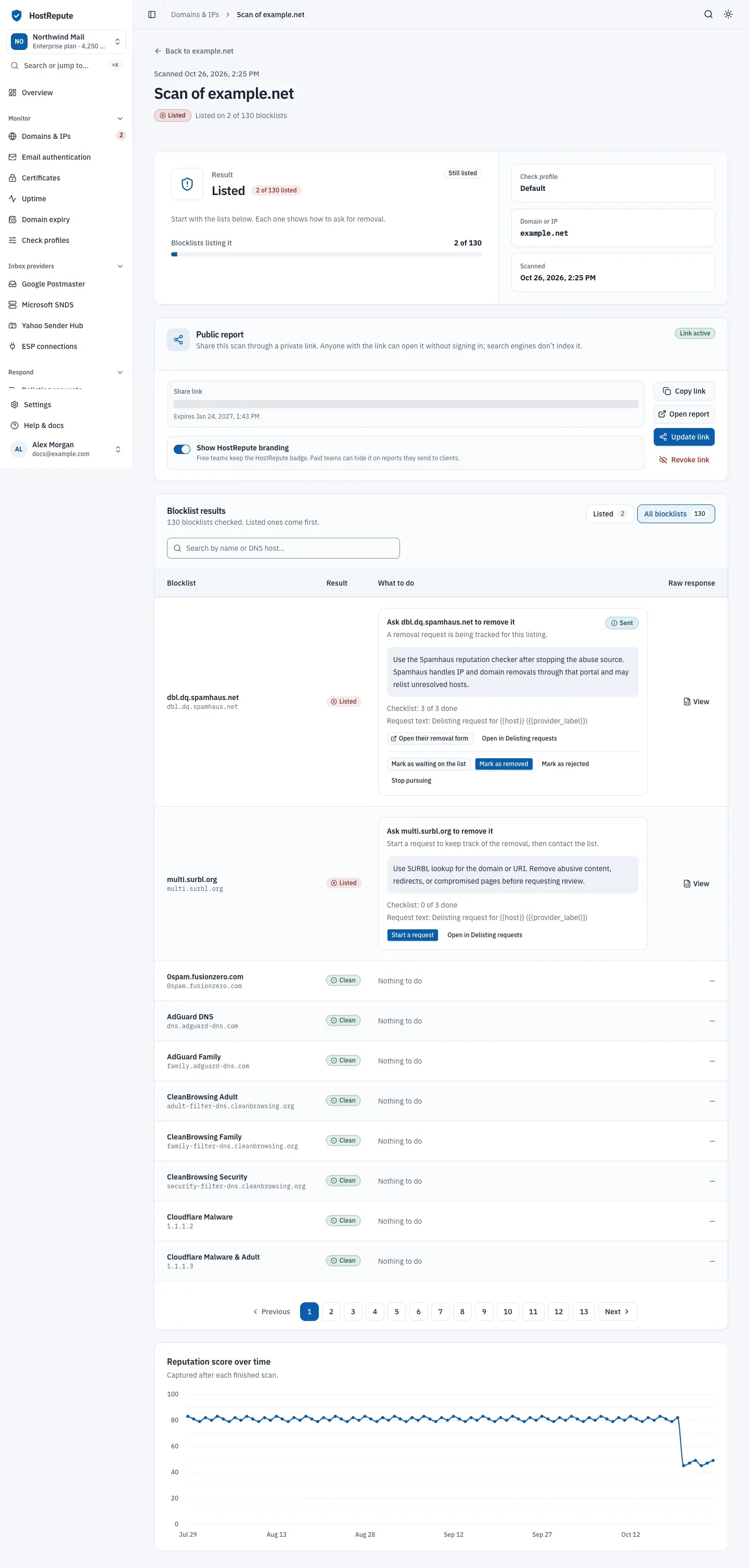
Open a scan to see every blocklist’s answer. The scan page shows the Result, how many Blocklists listing it, the Check profile used and when it was Scanned. Blocklist results lists the listed blocklists first; switch between Listed and All blocklists, or search by name or DNS host. For a listing or a blocklist that didn’t answer, Raw response shows what the blocklist returned or the error. At the bottom, Reputation score over time charts the score after each finished scan.
When a domain or IP is listed
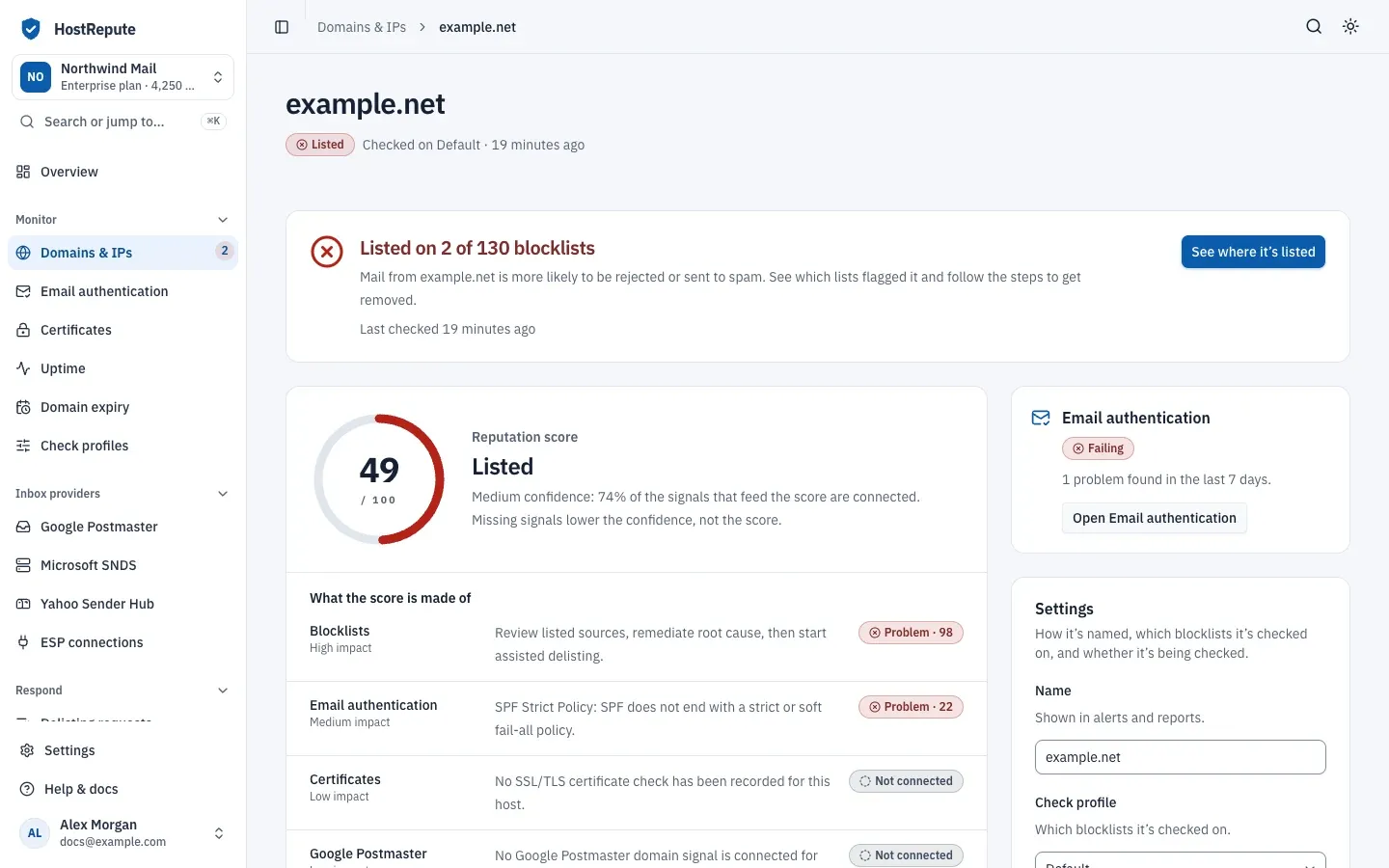
Section titled “When a domain or IP is listed”A listing shows up as the Listed status, a red banner on the Overview and an alert on your alert channels. While it lasts, the domain or IP’s reputation score is capped at 49.
On the scan page, each listing’s What to do column walks you through asking for removal: Start a request tracks it in delisting requests, and Open their removal form, Email the list or Follow their instructions shows how that blocklist takes requests.
Once a blocklist removes you, the next scheduled scan that finds the domain or IP clean sends a removal alert to channels set to Listed and removed. You can also share a scan through a private link from its Public report card.
Manual and API scans
Section titled “Manual and API scans”Scheduled scans are the core of monitoring, but you can scan on demand too:
- Manual scan scans one domain or IP right away, for 1 credit, refunded when no blocklist answers. It updates a monitored domain or IP’s status but never sends an alert.
- Developers can start a scan through the REST API with a token that has the
blacklist:checkability, also for 1 credit. API token abilities lists what each ability allows.
Defaults and limits
Section titled “Defaults and limits”These apply to every scan, on every plan:
| Setting | Default | How to change |
|---|---|---|
| How often HostRepute looks for domains and IPs that are due a scheduled scan | Every 30 minutes | Fixed. How often each domain or IP is scanned is set in team settings, within the plan's limits |
| First scan of a domain or IP you add | Starts right away when it's monitored and within the plan's limit, without using credits | Fixed |
| A blocklist's answer for the same domain or IP | Reused for up to 1 hour, by every scan | Fixed |
| A scan that is still checking | Marked as failed after 15 minutes | Fixed |
| How often HostRepute sends blocklist alerts for the changes scheduled scans found | Every 5 minutes | Fixed. Delivery hours can hold an alert until they open |
When to change them
Section titled “When to change them”- Scan more often when a listing would cost you a lot of mail, for example on the IPs that send most of your volume. The interval is one team setting, so every domain and IP follows it.
- Split your check profiles when some domains or IPs need other blocklists, for example a profile with only IPv4 lists for your sending IPs.
- Run a manual scan when you need a result now: after a DNS change, a removal request, a provider ticket or a customer escalation.
- Wait an hour before you rescan after a blocklist confirms a removal, because its earlier answer is reused for up to an hour.