

Add and manage domains and IPs
To monitor IP blacklist status, or a domain’s, add it to Domains & IPs: HostRepute scans it on every blocklist in its check profile, keeps scanning it on your team’s schedule and alerts you when it’s listed or removed. This guide covers adding domains and IPs, finding them in the list, reading a domain or IP’s page, and pausing or deleting one.
Before you begin
Section titled “Before you begin”- The Developer role or higher to add, change, pause or delete domains and IPs. Viewers see the list and every page, read-only.
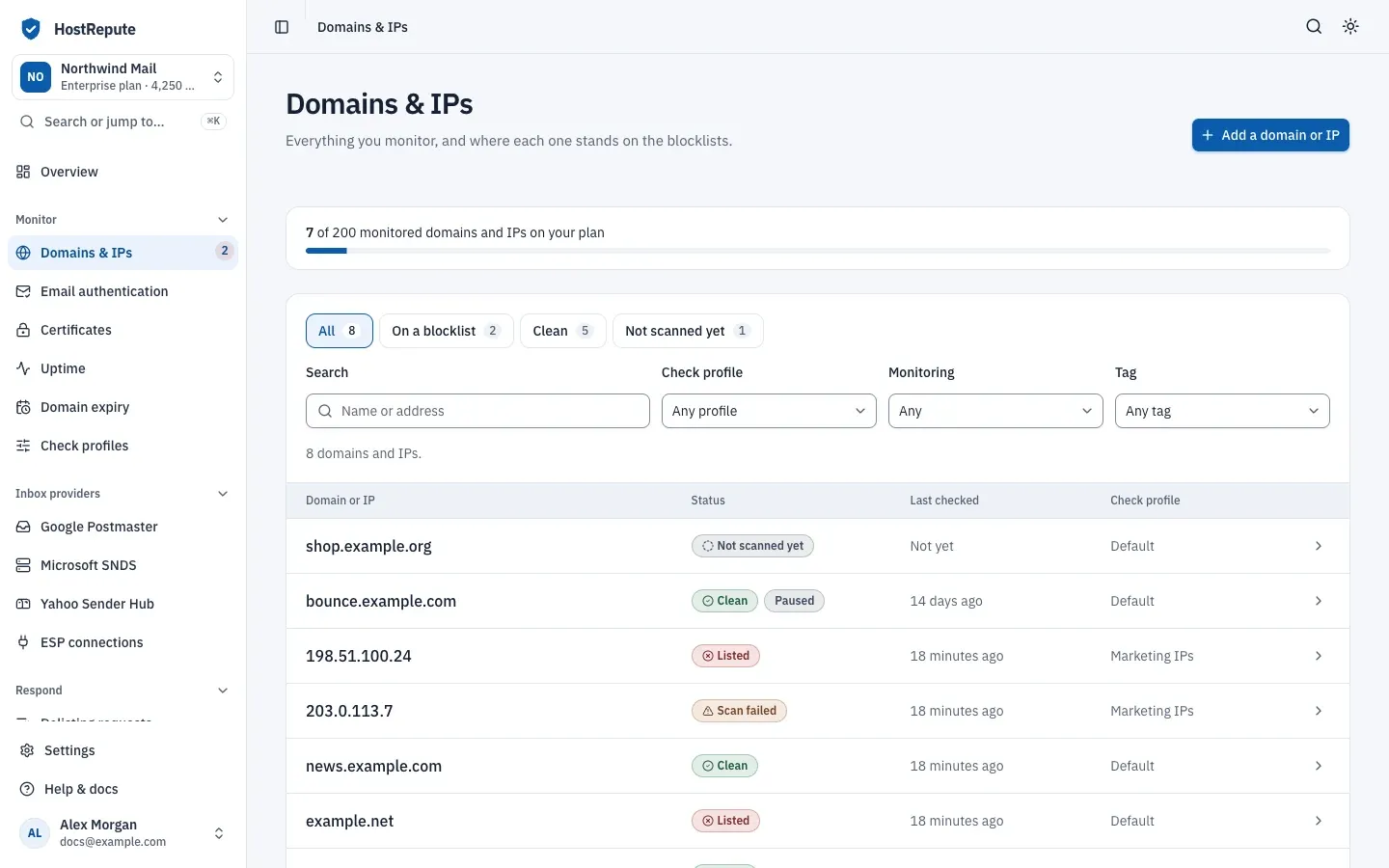
- Room in your plan. Each domain or IP you monitor counts once toward your plan’s limit; a paused one doesn’t. The limits are 20 on Professional, 50 on Business, 200 on Enterprise, and the meter at the top of the list shows how many you use. Every other limit is in Plans and limits.
- A check profile. A new team has one named Default with every free blocklist. Check profiles and blocklists explains how to make others.
Add a domain or IP
Section titled “Add a domain or IP”-
Open Domains & IPs and choose Add a domain or IP.
-
In Domain or IP address, enter a domain name such as
mail.example.com, an IPv4 address such as192.0.2.10, or an IPv6 address. If you paste a URL, HostRepute keeps only the host name and confirms it under the field, for example “We’ll watch mail.example.com.” Private, reserved and loopback addresses are refused. -
Optional: give it a Name. The name is shown in alerts and reports; without one, HostRepute uses the address.
-
Pick its Check profile, which decides the blocklists it’s checked on. The dialog starts with the first profile in alphabetical order, so check this field when you have more than one.
-
Optional: add Tags, separated by commas, for example
mail, production. Tags let you filter the list and pick domains and IPs for a scheduled report. -
Leave Start checking it right away on to monitor it from now on. Turn it off to add it paused: it’s saved, not scanned, and doesn’t count toward your limit.
-
Choose Add domain or IP. Its page opens. A domain or IP you monitor gets its first scan straight away, without using credits, and then follows the team’s schedule.
These limits apply to every plan:
| Setting | Default | How to change |
|---|---|---|
| Name | 255 characters | Fixed |
| Domain or IP address | 255 characters | Fixed |
| Tag length | 50 characters per tag | Fixed |
Find a domain or IP in the list
Section titled “Find a domain or IP in the list”The list shows 20 domains and IPs per page, newest first. Each row has the name (and the address, when the name differs), its tags, its status, when it was last checked and its check profile. A Paused badge marks one that isn’t being checked.
- Show narrows the list to All, On a blocklist, Clean or Not scanned yet, each with its count.
- Search matches the name or the address. Check profile, Monitoring (Being checked or Paused) and Tag narrow it further. On a phone, these sit under More filters.
- Clear filters shows everything again.
The list has no row or bulk actions: open a domain or IP to change it. The status it shows is the result of its latest scan:
| Status | Meaning |
|---|---|
| Not scanned yet | No blocklist scan has run for it yet. A monitored domain or IP gets its first scan shortly after you add it; a paused one isn't scanned. |
| Checking | A scan is running; its page says Scanning now until it finishes. A domain or IP that is already listed keeps showing Listed while it's rescanned. |
| Clean | The latest scan finished and none of the blocklists in its check profile lists it. It only shows after a completed scan, never before the first one. The dashboard's recent list shows it as No listings. |
| Listed | At least one blocklist in its check profile lists it. It stays listed until a later scan comes back clean from the blocklists that listed it, so a failed or partial rescan doesn't clear it. The On a blocklist filter shows these. |
| Scan failed | The latest scan didn't finish because no blocklist answered, usually for a moment. This is a warning, not a listing: it says nothing about reputation, and HostRepute tries again on the next scheduled check. |
| Paused | Monitoring is turned off for it, so it isn't scanned and keeps its last result next to this badge. The dashboard shows it as Monitoring off unless it's listed. |
Read a domain or IP’s page
Section titled “Read a domain or IP’s page”Open a domain or IP to see where it stands and how it got there.
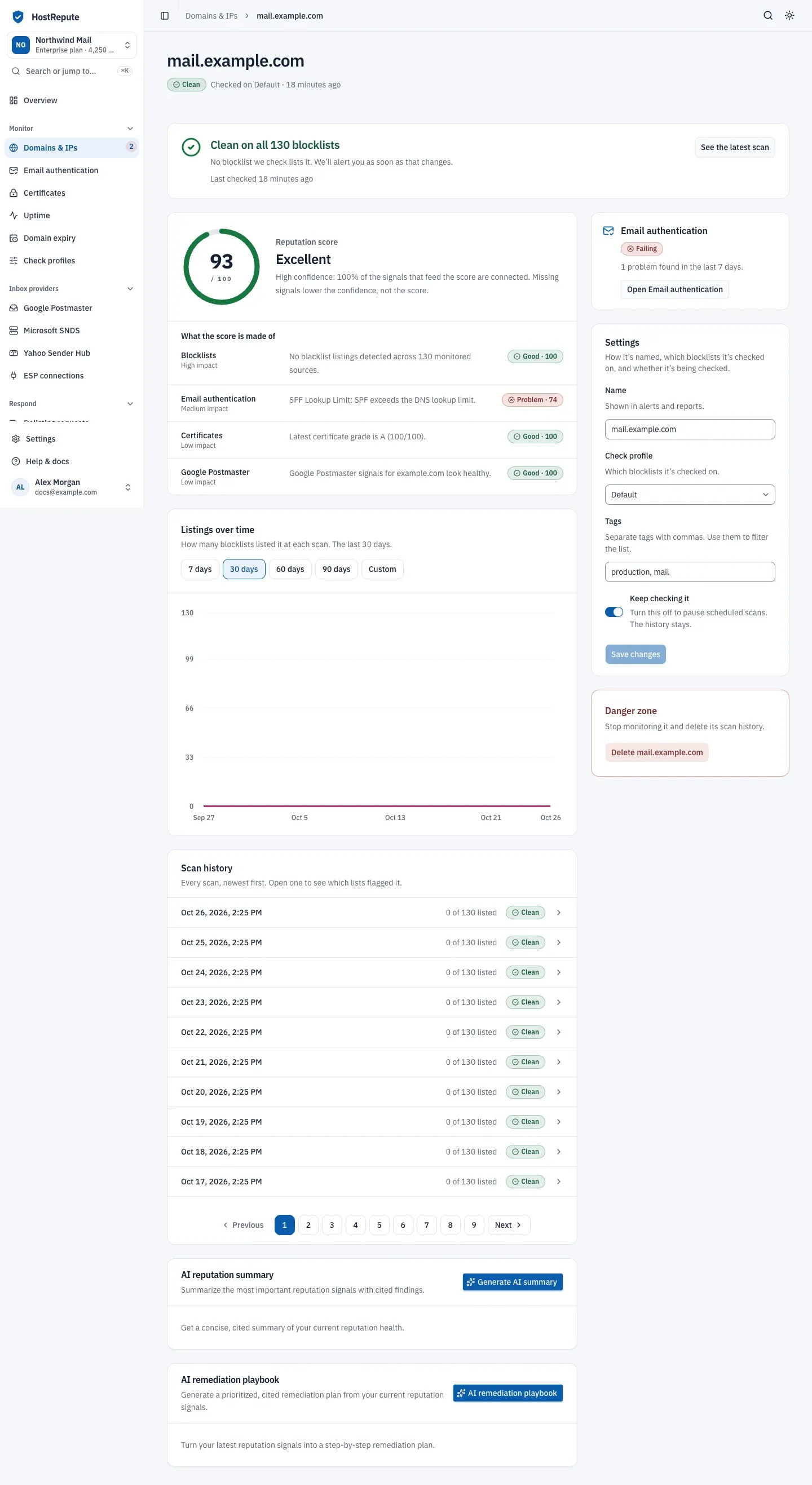
- The reputation score and what it’s made of.
- The scan history.
- The email authentication summary.
- The status at the top says it in words, with the next step: See where it’s listed when it’s listed, See the latest scan when it’s clean, or See what happened under The last scan didn’t finish. While a scan runs it reads Scanning now.
- Reputation score is a number from 0 to 100 that sums up every signal for this domain or IP. What the score is made of lists each signal with its finding. How the reputation score works explains the number.
- Listings over time charts how many blocklists listed it at each scan. Pick 7 days, 30 days, 60 days, 90 days, or Custom for a range of up to 90 days.
- Scan history lists every scan, newest first. Open one to see which blocklists flagged it, in a dialog; Open Full Page (or opening the scan in a new tab) shows the full scan page, where you share the result or start a removal.
- Email authentication shows the latest result of its SPF, DMARC and related checks (Passing, Needs work, Failing, Skipped or Not checked yet) and how many problems were found in the last 7 days. Open Email authentication or Check email authentication takes you to email authentication.
- Settings holds its name, check profile, tags and whether it’s being checked; see below.
The page has no button to scan now. To scan a domain or IP on demand, use Manual scan, for 1 credit; scheduled scans keep running without one.
Change, pause or delete a domain or IP
Section titled “Change, pause or delete a domain or IP”-
Open the domain or IP. In Settings, change its Name, Check profile or Tags, then choose Save changes. A new check profile applies from the next scan. The address itself can’t be changed: add the new one and delete the old one.
-
To pause it, turn off Keep checking it and save. Scheduled scans stop, its history stays, and it no longer counts toward your limit. Turn the switch back on to resume; that needs room in your plan.
-
To delete it, go to Danger zone at the bottom of the page, choose the delete button with its name, and confirm. Monitoring stops and its scan history is deleted for good; choose Keep it to back out.
Check that it worked
Section titled “Check that it worked”- The new domain or IP is in the list with the status Checking or the result of its first scan, and its page shows a scan in Scan history.
- The meter at the top of the list counts it when it’s monitored; a paused one carries the Paused badge instead.
- After a change, the page shows “You have unsaved changes.” until you save.
Troubleshooting
Section titled “Troubleshooting”- Add a domain or IP is greyed out. The team monitors as many domains and IPs as its plan allows. Pause or delete one, or ask the Owner to move to a bigger plan.
- The address is refused as not a valid IP address or domain name. Enter the domain name or the IP address on its own. A private, reserved or loopback address is refused too.
- Saving says your current plan can’t monitor more. You added it with Start checking it right away on, or turned Keep checking it back on, while the team is at its limit. Save it paused, or make room first.
- “N domains and IPs are paused after a plan change”. The team has more domains and IPs than its plan allows, so once a day HostRepute pauses the ones above the limit: the newest, unless you chose which to keep when the plan changed. Choosing a plan later doesn’t resume them: turn Keep checking it back on for each one you want checked.
- The status stays Not scanned yet. It’s paused (“Monitoring is paused, so it won’t be scanned.”), or its first scan is still on the way. Turn Keep checking it on to scan it.
- The status reads Scan failed. No blocklist answered during the latest scan. It’s a warning, not a listing, and HostRepute tries again at the next scheduled scan. If every scan fails, its check profile may have no blocklists; read Blocklist monitoring.
- “No scans in this period” in the chart. No scan finished in the range you picked. Choose a longer range.
- “Only members who can change domains and IPs can edit these.” Your role is Viewer. Ask a member with the Developer role or higher.
- No domains or IPs yet. The team has none. Add one, or wait for a team admin or developer to add it. Nothing matches these filters means the filters hide them all: choose Clear filters.
- A domain or IP you scanned by hand isn’t in the list. Manual scans of addresses your team doesn’t monitor are kept apart for 30 days. On Manual scan, choose Monitor to add it.