

Set up single sign-on
Single sign-on (SSO) lets your team sign in to HostRepute through your company’s identity provider (IdP), the service that already manages your staff accounts. This guide covers SAML SSO setup and OpenID Connect (OIDC): verifying your email domains, connecting the identity provider, testing the connection, turning SSO on and, if you choose, requiring it.
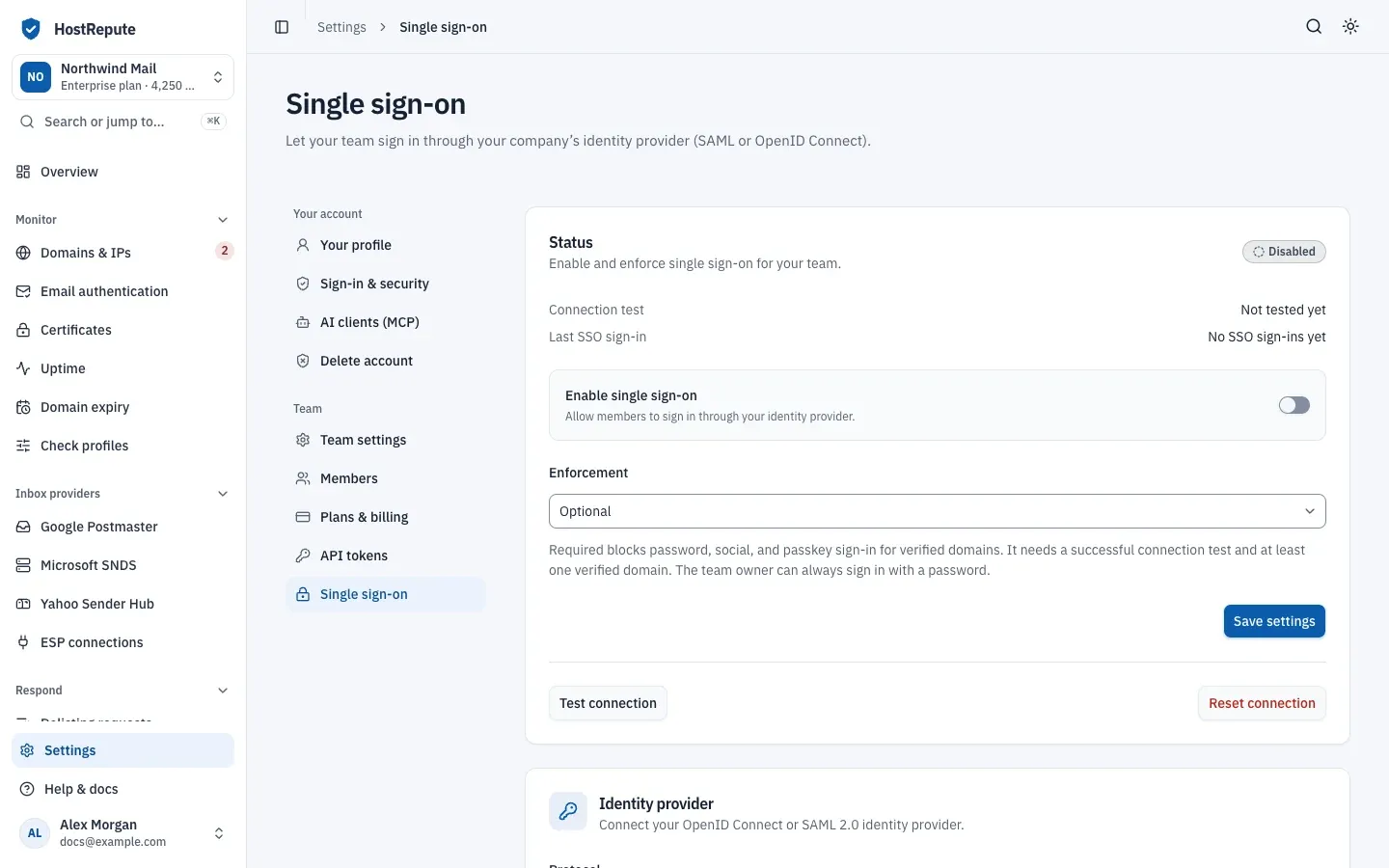
How single sign-on works
Section titled “How single sign-on works”- You prove that your team owns an email domain, such as
example.com, by publishing a DNS TXT record. - Someone chooses SSO on the log-in page and enters their work email, or opens your team’s Login URL. HostRepute sends them to your identity provider.
- Your identity provider signs them in and returns their email address. It must be on one of your verified domains.
- On their first SSO sign-in, HostRepute creates their account if they have none, and adds them to your team with the connection’s default role. Members who are already in the team keep their role.
- If they turned on two-factor authentication in HostRepute, they still enter their code after the identity provider.
Each HostRepute account is bound to the identity provider user that first signed it in, so changing someone’s email address in the identity provider never moves their sign-in onto another HostRepute account.
Before you begin
Section titled “Before you begin”- The Enterprise plan, and the Owner role. The Owner is the person who created the team.
- Admin access to your identity provider, to create a SAML 2.0 or OpenID Connect application for HostRepute.
- Access to your domain’s DNS, to publish a TXT record.
- An identity provider account with an email on that domain, to run the connection test while you’re signed in to HostRepute as the Owner.
Verify your email domains
Section titled “Verify your email domains”Only people whose email address is on a verified domain can sign in through SSO, and enforcement applies only to those domains. Until you add one, the card says “No domains yet. Add a domain below to start verifying it.”
-
Open Settings, then Single sign-on. Under Verified domains, enter your domain, for example
example.com, and choose Add domain. -
The domain appears as Pending, with a TXT record name and a TXT record value to copy. Publish a TXT record with exactly these values in your DNS. The name is
_hostrepute-sso.followed by your domain, such as_hostrepute-sso.example.com, and the value starts withhostrepute-sso-verification=. -
Choose Verify. When HostRepute finds the record, the domain shows as Verified. HostRepute checks the record only when you choose Verify.
| Status | Meaning |
|---|---|
| Pending | The domain is added, but HostRepute hasn't found its TXT record at _hostrepute-sso.<domain> yet. Publish the record, then choose Verify. |
| Verified | HostRepute found the TXT record. People with an email on this domain can sign in through single sign-on, and enforcement applies to them. |
- HostRepute compares the part of an email address after the
@with your verified domains exactly, so verify each domain and subdomain your people’s addresses use. - A domain can be verified by one HostRepute team at a time.
- Remove domain stops SSO sign-in for that domain. If it was your last verified domain, enforcement switches back to optional.
Connect your identity provider
Section titled “Connect your identity provider”In your identity provider, create an application for HostRepute with the values the Identity provider card shows for your connection; each has a copy button. Then enter your identity provider’s details in the same card.
-
Under Identity provider, set Protocol to SAML 2.0.
-
In your identity provider, create a SAML application. Use the ACS URL as its Assertion Consumer Service (reply) URL, and the SP Entity ID / Metadata URL as its service provider entity ID or audience. That URL also serves HostRepute’s SAML metadata.
-
Make the application send the user’s email address as the NameID in email format, or in an
email,mailoremailaddressattribute. HostRepute takes the name from anameordisplaynameattribute, or from first and last name attributes. The response or the assertion must be signed. -
Back in HostRepute, enter the IdP Entity ID, the IdP SSO URL (an HTTPS address) and the X.509 signing certificate from your identity provider, as PEM or Base64.
-
Pick the Default role and choose Save connection.
HostRepute starts every SAML sign-in itself, so sign-in that starts in the identity provider (IdP-initiated) isn’t supported. For an app tile in your identity provider’s dashboard, use the Login URL.
-
Under Identity provider, set Protocol to OpenID Connect.
-
In your identity provider, create a web application and register the Redirect URI exactly as shown. HostRepute asks for the
openid,emailandprofilescopes and uses the authorization code flow with PKCE. -
Make sure the ID token carries the user’s email address in the
emailclaim, or inpreferred_usernamewhen that is an email address. An email the identity provider marks as unverified is refused. -
Back in HostRepute, enter the Issuer URL, Client ID and Client secret. Use your tenant-specific issuer: the field’s hint gives
https://login.microsoftonline.com/{tenant-id}/v2.0as an example. -
Pick the Default role and choose Save connection. HostRepute loads the issuer’s OpenID configuration (
/.well-known/openid-configuration), checks that its issuer matches the URL you entered, and needs its endpoints to be public HTTPS addresses.
Once a client secret is saved, the field stays empty: leave it blank to keep the current secret.
These values from the card go into your identity provider. Copy them from the page; each one is specific to your team’s connection, apart from the redirect URI.
| Value | Protocol | Where it goes in your identity provider |
|---|---|---|
| Redirect URI | OpenID Connect | The allowed redirect or callback URL |
| ACS URL | SAML 2.0 | The Assertion Consumer Service (reply) URL |
| SP Entity ID / Metadata URL | SAML 2.0 | The service provider entity ID, audience or metadata |
| Login URL | Both | The app’s sign-in, or initiate-login, URL and app tile |
Default role. People who join the team through SSO get the Default role: Manager, Developer or Viewer (Viewer until you change it). It applies only to new members; you change anyone’s role later in Members. Anyone your identity provider lets sign in to the HostRepute application, with an email on a verified domain, joins the team, so control who gets in by assigning the application in your identity provider.
Changing the connection later. Saving new identity provider details clears the connection test. If SSO was required, enforcement switches to optional until a new test passes. Changing the protocol, issuer, client ID or IdP entity ID also unlinks every member from their identity provider user; HostRepute links them again by email at their next SSO sign-in.
Test the connection
Section titled “Test the connection”-
Under Status, choose Test connection. It’s available once the identity provider settings are complete.
-
HostRepute sends you to your identity provider. Sign in with an account whose email is on a verified domain.
-
Back on the page, “Connection test succeeded.” names the email your identity provider signed in, and Connection test shows the date instead of “Not tested yet”. A failed test shows “Connection test failed:” and the reason.
The test doesn’t add anyone to the team. Run it in the browser where you’re signed in to HostRepute as the Owner, and finish within 10 minutes.
Turn on single sign-on
Section titled “Turn on single sign-on”-
Under Status, switch on Enable single sign-on, keep Enforcement at Optional, and choose Save settings.
-
Tell your team how to sign in: SSO on the log-in page opens Log in with single sign-on, where they enter their Work email and choose Continue. The Login URL goes straight to your identity provider.
While enforcement is optional, everyone can still sign in with a password, a passkey or Google, GitHub, Yahoo or Microsoft.
| Status | Meaning |
|---|---|
| Not configured | The identity provider settings aren't complete, so single sign-on can't be turned on or tested yet. Fill in the connection and choose Save connection. |
| Disabled | The connection is saved, but single sign-on is off. Members sign in with a password, a passkey or a social sign-in. |
| Enabled | People with an email on a verified domain can sign in through the identity provider, and every other sign-in method still works. |
| Enforced | Single sign-on is on, set to Required, and its connection test passed. Everyone with an email on a verified domain must sign in through the identity provider, except the team's Owner. |
Require single sign-on
Section titled “Require single sign-on”Set Enforcement to Required and choose Save settings. HostRepute accepts it only when SSO is enabled, the connection test has passed, and at least one domain is verified. The status then shows Enforced.
How the Owner keeps access. The Owner is never held to enforcement: they can always sign in with their password, a passkey or a social sign-in, so a broken identity provider can’t lock the team out.
Enforcement switches back to optional on its own when you save new identity provider details (until a new test passes) or remove your last verified domain. Reset connection clears the identity provider settings, turns SSO off, sets enforcement to optional and unlinks members from their identity provider users; verified domains are kept.
If the team leaves the Enterprise plan, SSO stops working and isn’t enforced, and members sign in with their other methods. Someone who only ever signed in through SSO has no password and can set one with Forgot password?.
Check that it worked
Section titled “Check that it worked”- The status badge at the top of Status shows Enabled, or Enforced when SSO is required.
- After someone signs in through SSO, Last SSO sign-in shows the date instead of “No SSO sign-ins yet”, and new members appear in Members with the default role.
- With SSO required, a password sign-in for an address on a verified domain shows “Your organization requires single sign-on. Use “Sign in with SSO” to continue.”
Limits
Section titled “Limits”| Setting | Default | How to change |
|---|---|---|
| Email domain | 237 characters | Fixed |
| OIDC issuer URL | 2,048 characters, HTTPS | Fixed |
| OIDC client ID | 255 characters | Fixed |
| OIDC client secret | 2,048 characters | Fixed |
| SAML IdP entity ID | 2,048 characters | Fixed |
| SAML IdP SSO URL | 2,048 characters, HTTPS | Fixed |
| SAML IdP certificate | 10,000 characters | Fixed |
Starting single sign-on is limited to 10 tries a minute per email address and 60 a minute per IP address. The connection test and domain verification each allow 6 tries a minute. Every other limit is in Limits and defaults.
Troubleshooting
Section titled “Troubleshooting”- The page shows Single sign-on is part of the Enterprise plan. The team isn’t on the Enterprise plan. The Owner changes the plan in Plans, trial and billing.
- “We could not find the TXT record at … yet. DNS changes can take a few minutes to propagate.” Check the record’s name and value, wait for DNS to update, and choose Verify again.
- “This domain is already verified by another team.” Another HostRepute team owns that domain’s SSO. Remove it there first.
- “We could not load the OpenID configuration from this issuer.” The issuer URL is wrong or not reachable. Use the issuer your identity provider shows for this application.
- “The issuer in the discovery document does not match.” The URL you entered differs from the issuer in its own OpenID configuration, for example a shared multi-tenant issuer instead of your tenant’s. Enter the issuer exactly as the configuration states it.
- “The identity provider endpoints must be public HTTPS URLs.” The identity provider must be reachable from the internet over HTTPS.
- “The client secret field is required.” Enter the client secret the first time you save an OpenID Connect connection.
- “The certificate must be a valid PEM or Base64 X.509 certificate.” Paste the identity provider’s signing
certificate, including its
BEGIN CERTIFICATEandEND CERTIFICATElines if it has them. - “Run a successful connection test before requiring SSO.”, “Verify at least one domain before requiring SSO.” or “Enable SSO before requiring it.” Do the missing step, then set Required again.
- “Configure your identity provider before enabling SSO.” Fill in and save the identity provider details first.
- “Single sign-on is not set up for this email domain. Sign in with your password or ask your team owner to configure SSO.” The person’s email domain isn’t verified, SSO is off, or the team isn’t on Enterprise.
- “The identity provider returned …, which is not on one of this team’s verified domains.” The account used at the identity provider has an email outside your verified domains. Verify that domain, or sign in with another account.
- “The identity provider did not return an email address. Add the email claim to the application.” or “The SAML response did not include an email address.” Add the email claim or attribute to the application.
- “The identity provider reports this email as unverified.” Verify the user’s email address in your identity provider.
- “Unsolicited SAML responses are not accepted. Start sign-in from HostRepute or your team’s login URL.” The sign-in started in the identity provider. Use the Login URL for the app tile.
- “The SAML response could not be validated.” Check the IdP entity ID, the SSO URL and the signing certificate, and that the identity provider signs its response or assertion.
- “This sign-in link has expired or was started in another browser. Please sign in again.” More than 10 minutes passed, or the sign-in started in another browser. Start again.
- “Sign in as the team owner who started the test, then try again.” Run the test while signed in to HostRepute as the Owner, in the same browser.
- “This account is already linked to a different identity provider user. Ask your team owner to check the account in your identity provider.” The HostRepute account was first linked to another user in your identity provider. Check for duplicate users with that email.