

Plans, trial and billing
The team’s Owner compares HostRepute plans, subscribes, switches between monthly and yearly billing, and cancels or resumes the subscription in Settings, then Plans & billing. A plan pays for scheduled monitoring; credits pay for checks you start yourself. Prices are on hostrepute.com/pricing.
Before you begin
Section titled “Before you begin”- The Owner role. Each team has its own plan, and only its Owner sees Plans & billing in Settings. Members and roles explains the roles.
- A way to pay through Paddle. HostRepute bills through Paddle, its payment provider. Checkout opens in a Paddle window, and Paddle keeps your card or other payment method.
How the trial works
Section titled “How the trial works”Your first team, created when you sign up, starts a 14-day trial with the limits of the Professional plan. No card is needed.
- The trial belongs to you, not to a team. Every team you own shares it, and creating another team doesn’t start a new one. A team you join as a member runs on its Owner’s trial.
- The team menu at the top of the sidebar shows Trial · N days left, then Trial ends today. HostRepute emails you 3 days before the trial ends and again when it has ended.
- You can subscribe at any time during the trial. The plan’s billing starts right after checkout.
- When the trial ends without a plan, the team has no plan: see Teams without a plan.
Compare the plans
Section titled “Compare the plans”| Limit | Professional | Business | Enterprise |
|---|---|---|---|
| Domains and IPs | 20 | 50 | 200 |
| Default blocklist check interval | Every 24 hours | Every 12 hours | Every 6 hours |
| Fastest blocklist check interval | Every 60 minutes | Every 30 minutes | Every 30 minutes |
| Check profiles with email authentication | 5 | 20 | 75 |
| Email authentication checks | All 13 | All 13 | All 13 |
| Scheduled email authentication checks | Included | Included | Included |
| Email authentication history | 90 days | 365 days | 365 days |
| Certificates | 20 | 75 | 250 |
| Certificate check interval | Every 24 hours | Every 12 hours | Every 6 hours |
| Uptime monitors | 5 | 25 | 100 |
| Uptime check interval | Every 15 minutes | Every 5 minutes | Every minute |
| Uptime check history | 30 days | 90 days | 365 days |
| Uptime summary history | 365 days | 365 days | 730 days |
| Domain expiry monitors | 20 | 75 | 250 |
| Google Postmaster connections | 1 | 3 | 10 |
| Google Postmaster domains | 1 | 3 | 10 |
| Microsoft SNDS connections | 1 | 3 | 10 |
| Microsoft SNDS IPs | 50 | 200 | 1,000 |
| Yahoo Sender Hub | Included | Included | Included |
| ESP connections | 3 | 10 | 25 |
| Alert channels | 5 | 25 | Unlimited |
| Alert channel types | Email, Slack, Telegram | Email, Slack, Telegram, Discord, PagerDuty, Pushover, Webhook | Email, Slack, Telegram, Discord, PagerDuty, Pushover, Webhook |
| Delivery hours | 2 | 10 | Unlimited |
| Scheduled reports | 5 | 25 | 75 |
| Status pages | Not included | 10 | 50 |
| AI assistant | Not included | Included | Included |
| AI incident summaries | Not included | Included | Included |
| Prometheus metrics | Not included | Included | Included |
| Single sign-on (SAML and OIDC) | Not included | Not included | Included |
Prices are on the HostRepute pricing page.
The plan card on the Plan tab shows one of these statuses:
| Status | Meaning |
|---|---|
| Trial | The team is on its Owner's 14-day trial, with the limits of the Professional plan. The card shows how many days are left. Nothing is billed until the Owner subscribes. |
| Active | The team pays for this plan through Paddle, monthly or yearly, and the subscription renews by itself. |
| Cancellation scheduled | The subscription is cancelled but stays active until the end date the card shows; after that the team has no plan. Resume subscription undoes the cancellation until then. |
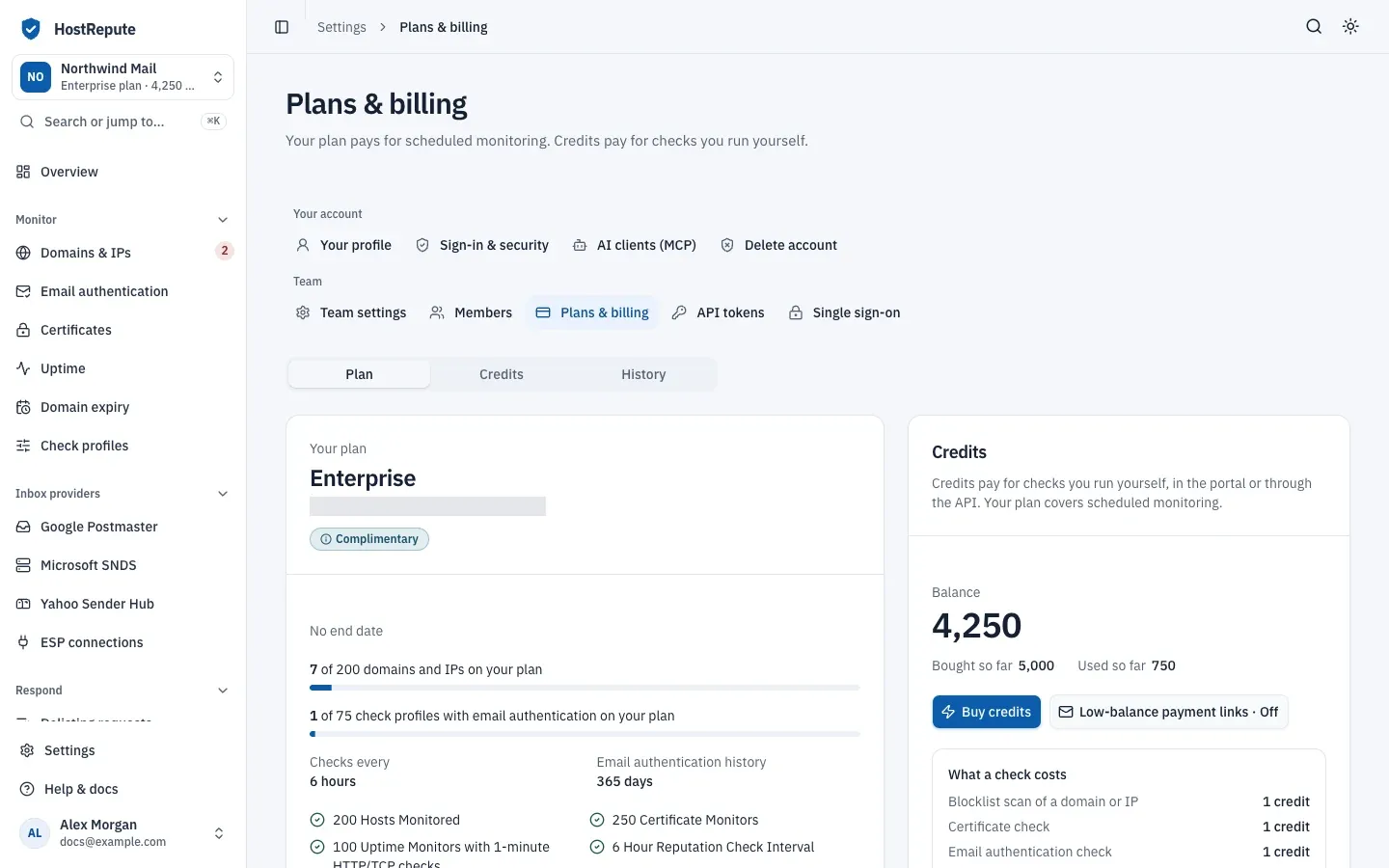
| Complimentary | HostRepute gave the team this plan without charge, until the date the card shows or with no end date. If the team also pays for a plan, the higher of the two applies. |
| No plan | The trial ended or the subscription was cancelled. Nothing is checked and no alerts are sent until the Owner chooses a plan; the team's domains, IPs and settings are kept. |
Checks every on the card is the plan’s default blocklist check interval. Your team’s own interval is in Settings, then Team settings: read teams and team settings.
Choose or change a plan
Section titled “Choose or change a plan”-
Open Settings, then Plans & billing. It opens on the Plan tab.
-
Under Compare plans, pick Monthly or Yearly billing. The comparison shows what yearly billing saves.
-
Choose the button under the plan you want:
- Subscribe to and the plan’s name when the team is on its trial, has no plan or has a complimentary plan.
- Upgrade to or Downgrade to and the plan’s name when the team already pays for a plan.
- Switch to yearly billing or Switch to monthly billing under the plan you already pay for. Current plan marks the plan and billing you have now.
-
When you downgrade a plan you pay for and the new plan watches fewer domains and IPs than you monitor, pick the ones to keep checking, then choose Change plan. The others are paused, not deleted. HostRepute asks the same for check profiles with email authentication; choose Review plan change.
-
Read the summary: the current and new plan, the domain and IP limit, the billing cycle and when billing starts. Then choose Continue to checkout to pay in Paddle’s checkout, or Confirm change or Confirm downgrade when the team already pays for a plan.
When you change the plan of a subscription you already pay for, Paddle prorates the price: an upgrade, or a switch to yearly billing, charges the prorated difference right away, and a downgrade or a switch to monthly billing settles it on your next bill. The new limits apply straight away (Paddle’s proration modes, checked October 2026).
After a downgrade, HostRepute also pauses whatever is above the new plan’s limits, such as certificates, uptime checks, Google Postmaster and Microsoft SNDS connections, and scheduled reports. It keeps the oldest ones. A team with a complimentary plan keeps the higher of its complimentary and paid plans until the complimentary plan ends.
Update the payment method
Section titled “Update the payment method”-
On the Plan tab, choose Update payment method.
-
In Change your payment method?, choose Go to Paddle.
-
Change the card or payment method on Paddle’s page.
The button shows only while the team pays for a plan.
Cancel or resume the subscription
Section titled “Cancel or resume the subscription”-
On the Plan tab, choose Cancel subscription.
-
Read the dialog, then choose Schedule cancellation. Keep subscription closes it without cancelling.
The plan stays active until the end of the billing period. Until then the card shows Cancellation scheduled and the date it ends, and Resume subscription replaces the cancel button. Choose it, then confirm, to keep the subscription renewing as before. When the period ends, the team has no plan.
Teams without a plan
Section titled “Teams without a plan”When the trial ends or a cancellation takes effect, every page except billing, settings and Refer a friend shows Choose a plan to start monitoring again, and the team menu says Monitoring paused. The Owner gets Choose a plan; everyone else sees Only the team owner can choose a plan..
- Nothing is checked and no alerts are sent.
- Domains and IPs, members, alert channels, settings and credits are kept.
- Detailed uptime checks aren’t kept without a plan; uptime summaries are kept for 90 days.
- Once a day, and when a subscription ends, HostRepute pauses whatever a team has above its plan’s limits. For a team without a plan, that is everything.
Check that it worked
Section titled “Check that it worked”- The plan card names the new plan with the Active status, or Cancellation scheduled and its end date.
- The team menu at the top of the sidebar shows the plan’s name and the team’s credits.
- The domains and IPs meter on the card counts against the new plan’s limit.
Troubleshooting
Section titled “Troubleshooting”- Plans & billing isn’t in Settings. Only the team’s Owner can open it. Ask the Owner to change the plan.
- “Your existing subscription is currently past_due” (or paused). Paddle couldn’t collect a payment, so the plan can’t change. Choose Update payment method, then change the plan once Paddle has the payment.
- “Your existing subscription is still being finalized. Please wait before starting another checkout.” A checkout you finished a moment ago hasn’t been confirmed by Paddle yet. Wait a minute and reload the page.
- “Payment received.” but the plan hasn’t changed. The page updates as soon as Paddle confirms the payment. Reload the page after a minute.
- The downgrade asks you to pick domains and IPs. The new plan watches fewer than you monitor. Pick up to its limit; the rest are paused, and you can switch them back on later if a plan has room.
- Checks are still paused after you chose a plan. Turn them back on as described in Teams without a plan.
- You can’t delete your account. Teams you own still have a subscription. Read your profile and account.
Related
Section titled “Related”- Credits explains what credits pay for and how to buy them.
- Plans and limits lists every plan limit.
- Teams and team settings covers how often HostRepute checks your domains and IPs.
- Frequently asked questions answers common questions about the trial and plans.